

Over the last few months, I’ve developed small utilities using AI coding assistants, mainly Claude Code, to address specific inconveniences in my daily workflow.
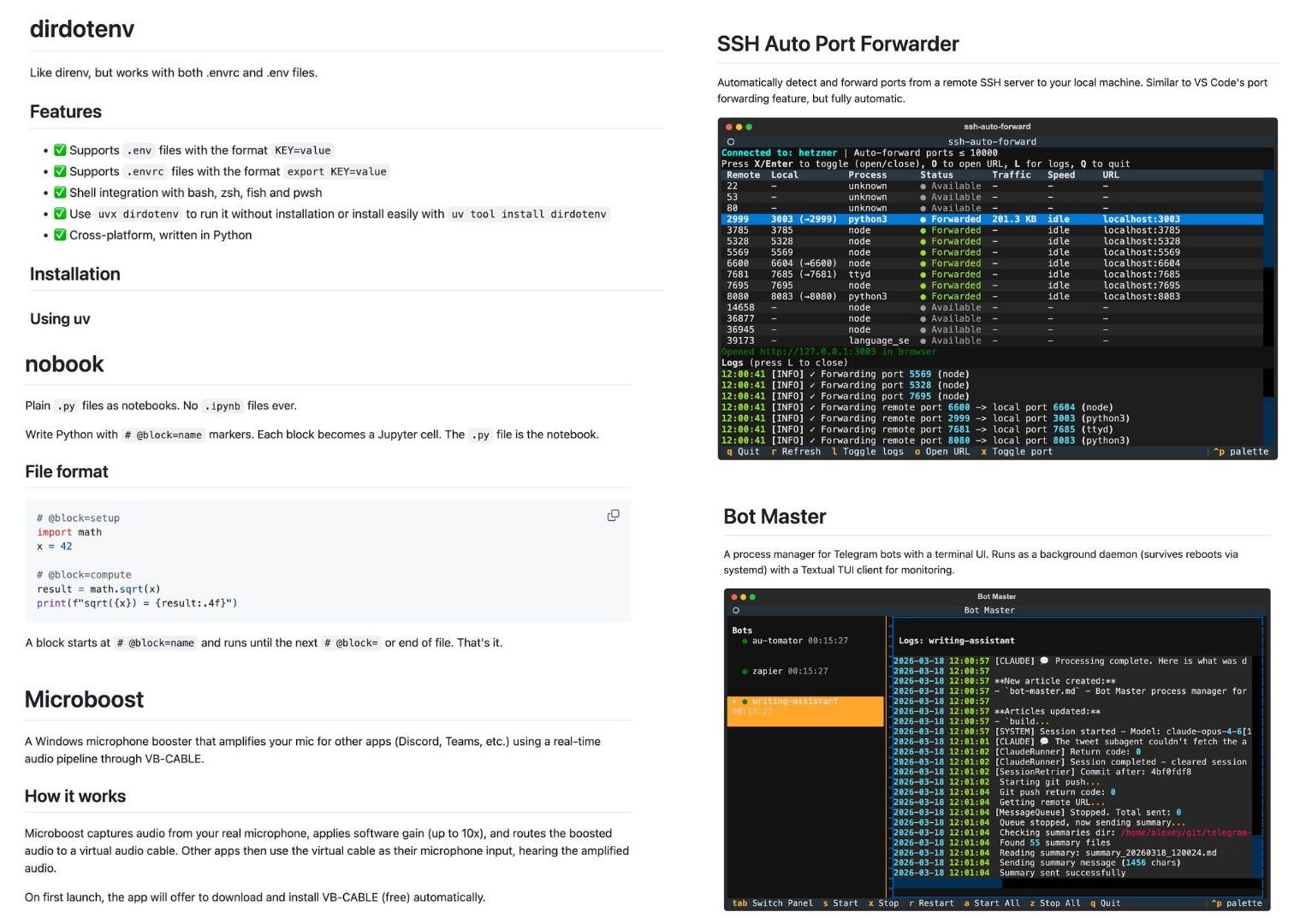
dirdotenv for loading environment variables in the terminal
ssh-auto-forward for automatic port forwarding from remote servers
nobook for using plain Python files as Jupyter notebooks
Microphone Booster for fixing quiet USB-C microphones on Windows
Bot Master for keeping my Telegram bots running
These tools originated from personal annoyances and have since become a regular part of my routine.
What’s notable about these tools is that I tackled areas I wouldn’t typically explore on my own: shell hooks, SSH tunneling, Jupyter internals, native Windows APIs, and background daemons. But with AI help, it only took an evening or a few iterations to create something usable.
In this post, I explain what these utilities do, why they were developed, and how AI-assisted development allowed me to create new, personalized tools in areas I hadn't explored before.
Why I Built These Small Tools
The existing tools and workflows had limitations that were becoming more frustrating. I was looking for something more tailored to how I work, but I couldn't find anything that would fit all my needs, so I ended up building my own tools.
In some cases, the missing piece was portability across machines; in others, it was better integration with tools I already use; and sometimes it was simply the ability to control and extend the behavior myself, rather than adapting to someone else’s assumptions.
Before AI coding assistants came along, many of these ideas would have remained half-baked notes. Building a small utility still means thinking through how it should work, making sure it does what it’s supposed to, and sorting out any tricky situations. But now, it’s way easier to jump in without having to get comfy with some unfamiliar tech just to see if the idea is worth pursuing.
1. dirdotenv: A Cross-Platform Alternative to direnv
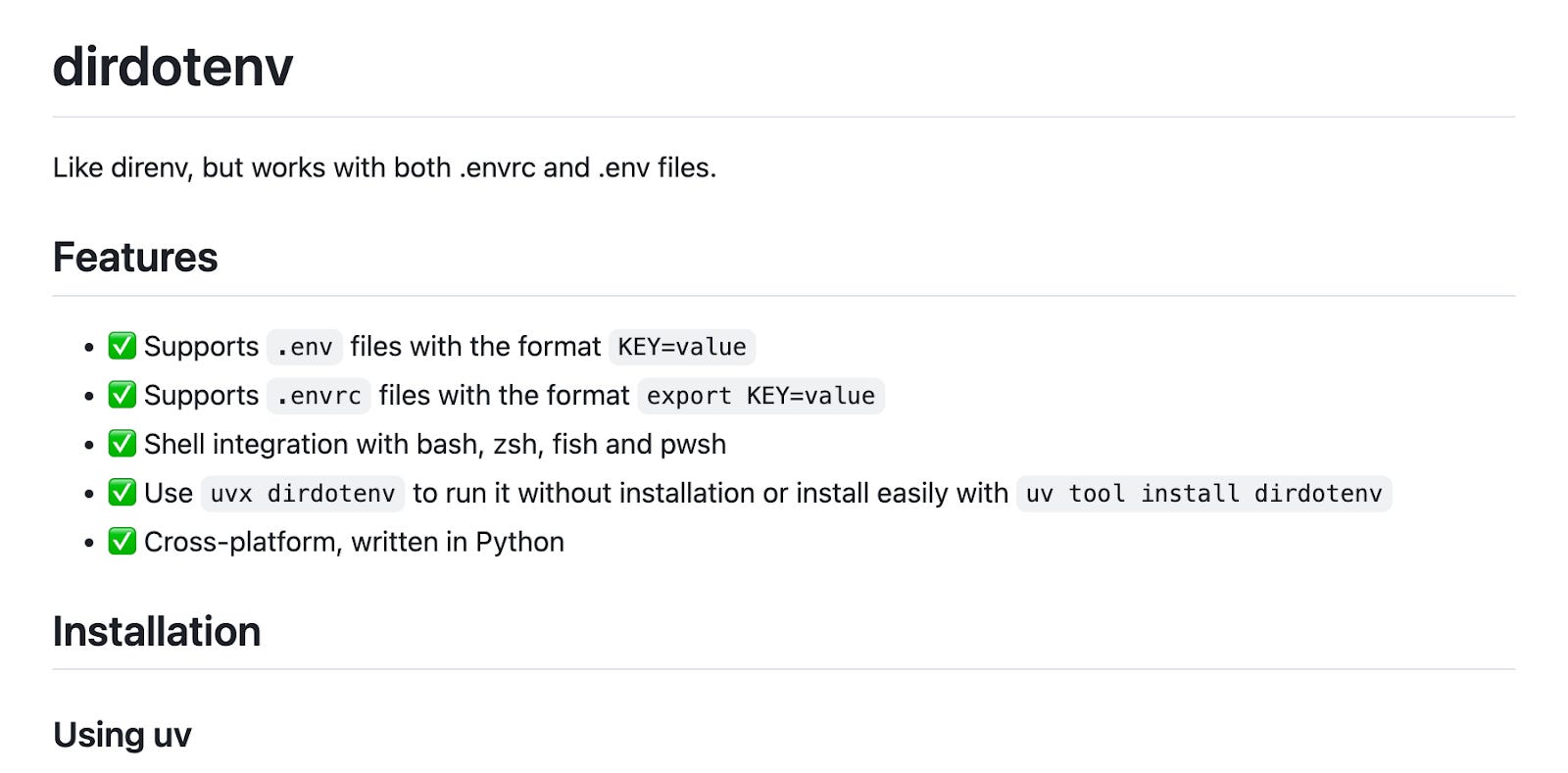
One of the first tools I built this way was dirdotenv, which grew out of a mismatch between how I wanted to manage environment variables and how existing tooling expected me to manage them.
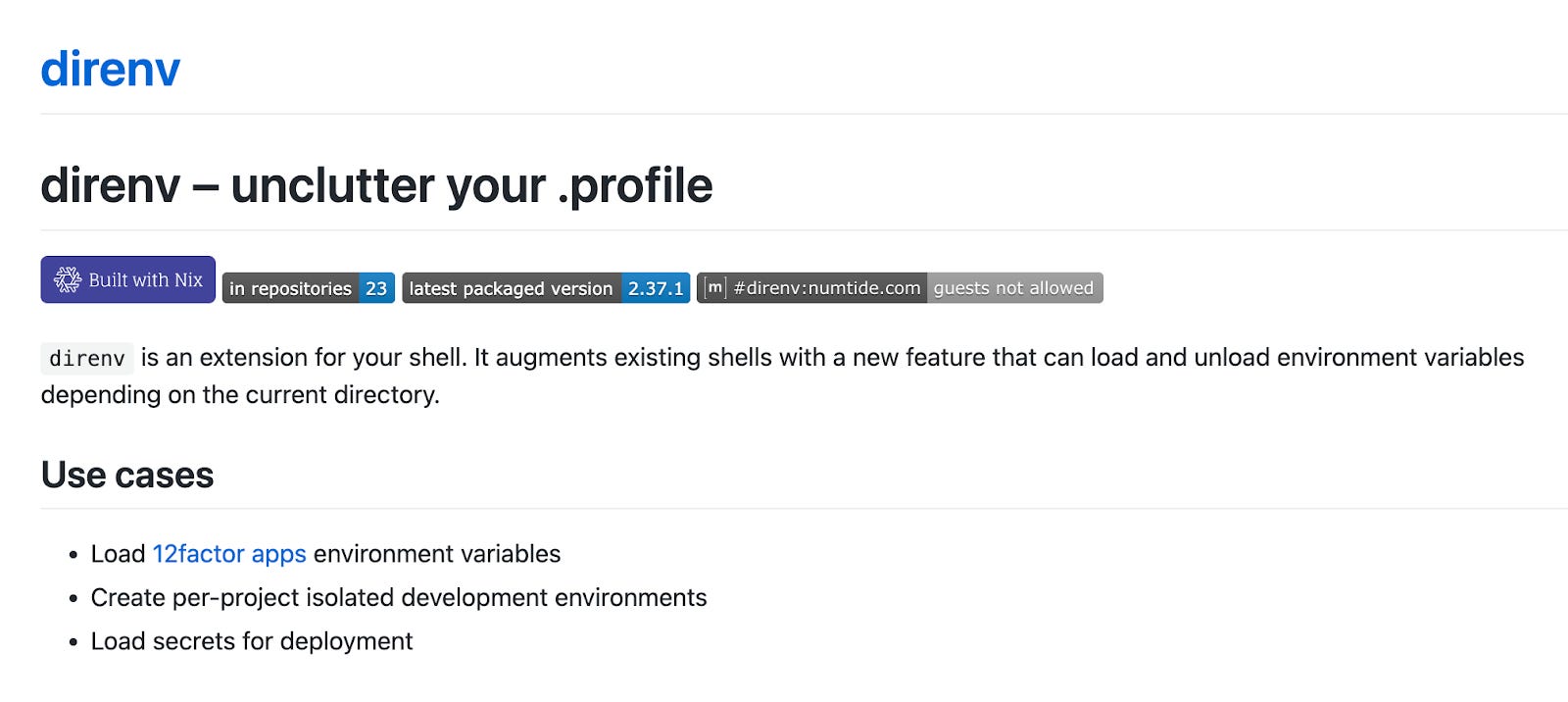
I wanted environment variables to load automatically when I entered a project directory in the terminal, especially for things like API keys and local configuration. direnv already solves that problem, but it is built around its own .envrc format, while more and more of the tools I use already rely on plain .env files. Docker Compose uses them, VS Code uses them, uv uses them, and many Python projects use them by default. I didn’t want an additional format and an additional mental model just for directory-based loading.
That pushed me toward building a tool that supports both .env and .envrc and fits better with the range of systems I use. Cross-platform support mattered because I work across several Windows machines, including an ARM64 tablet, where binary-based tools are often more annoying than they should be. Python was a more natural choice because it already runs everywhere I need it, and once the tool is written in Python, the installation becomes much simpler.
The result was dirdotenv, which works across Windows, Linux, and macOS, supports bash, zsh, fish, and PowerShell, and can be installed either as a normal uv tool or run directly with uvx. In practice, I switched to it across all my machines because it aligns better with the formats I already use and because, unlike an external tool I did not build, it is easy to adapt when I need slightly different behavior.
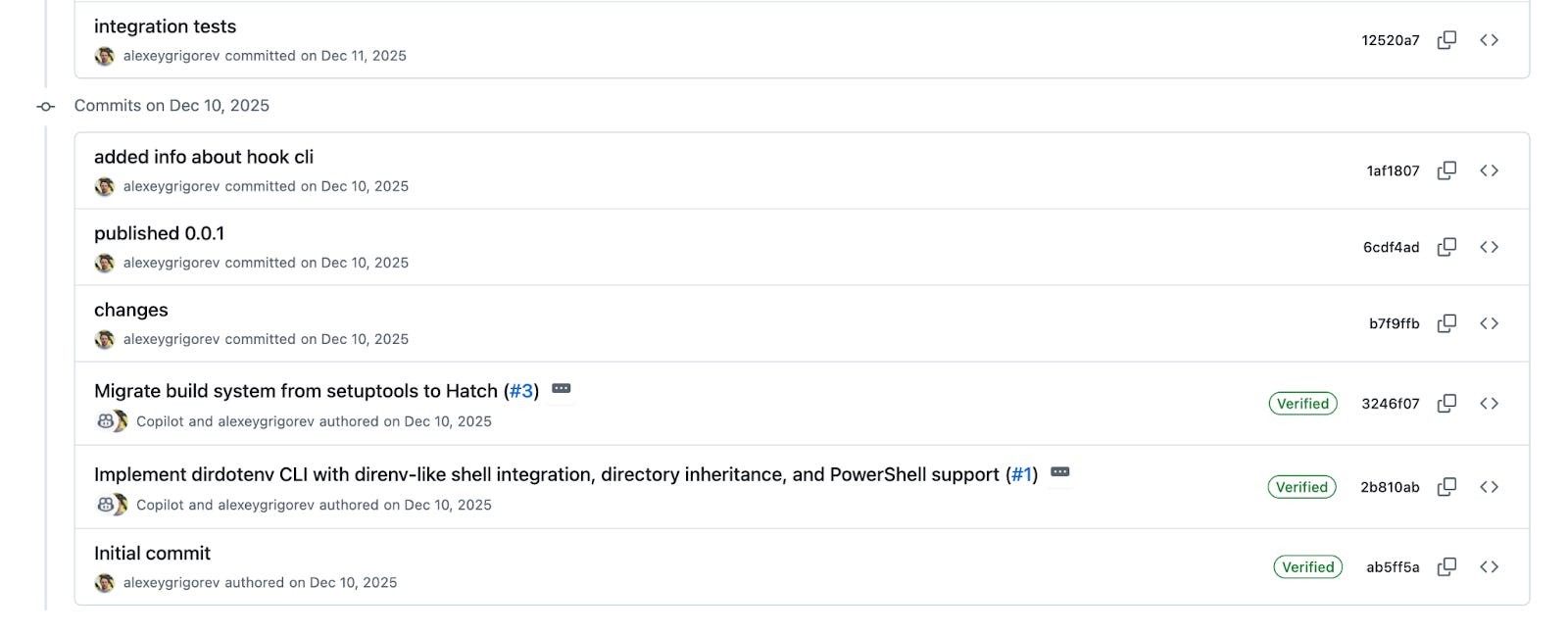
I started this project with GitHub Copilot’s “Jumpstart your project” feature. It allows you to describe an idea directly in the browser and get an initial implementation without having to open your computer. In my experience, it is still fairly limited: the prompt size is small, and the results are not especially strong. But the idea itself is useful because it lowers the barrier to starting a project when you want to quickly capture the concept.
After receiving the first version from Copilot, I continued with Claude Code. This was also one of my initial experiments with it, and it proved useful beyond just the tool itself. I had never worked with shell hooks before, so this was an opportunity to create something practical while also gaining a basic understanding of a part of the system I normally wouldn’t touch.
2. SSH Auto Forward: Port Forwarding Without VS Code
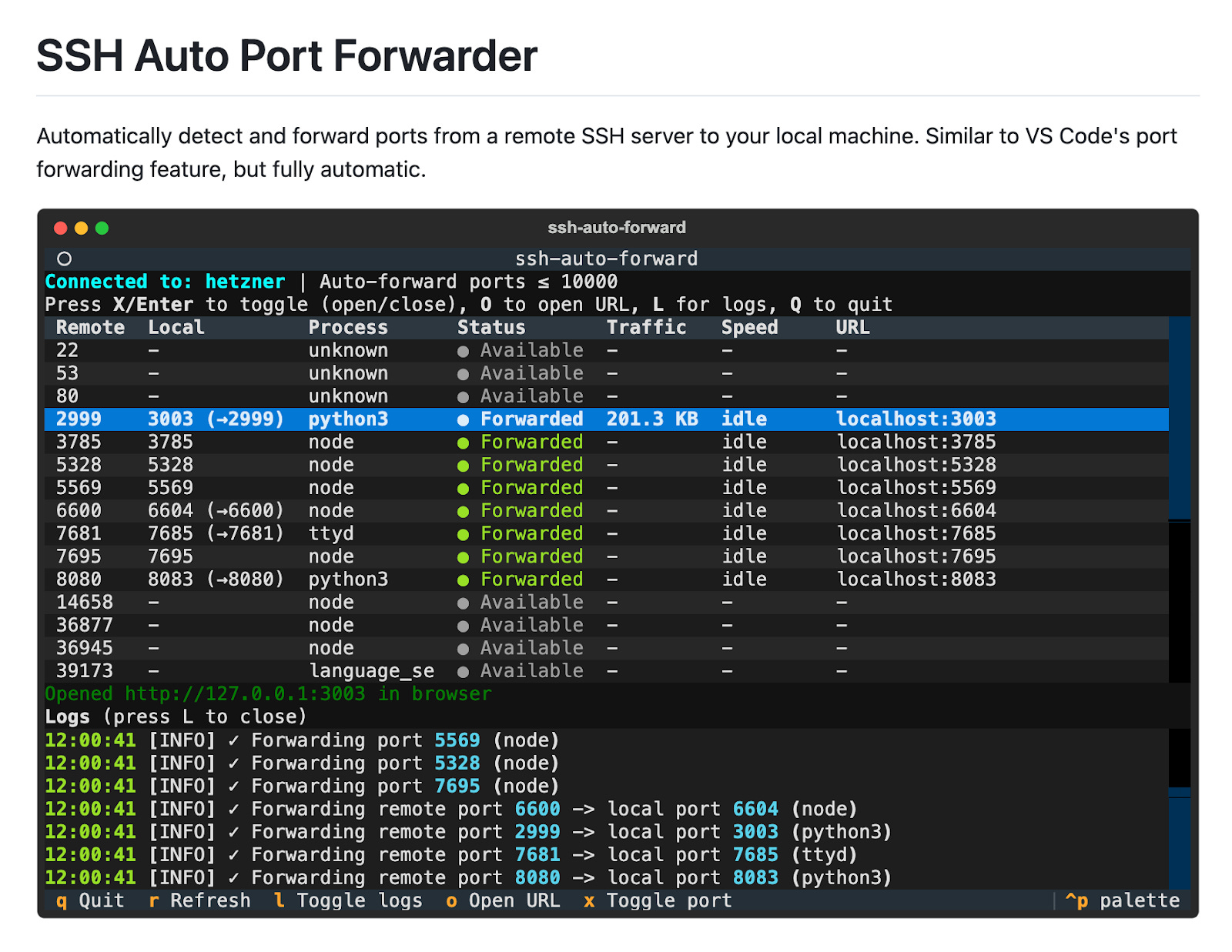
ssh-auto-forward came from a remote development workflow that already worked reasonably well, but kept breaking down at the same point.
I do most of my development on a remote Hetzner server through VS Code Remote SSH, which means the code, services, and local environment all live there, while I interact with them from my own machine.
The setup is convenient until I need to access a web service on the remote machine from a local browser. Since the firewall only exposes SSH, I need port forwarding. While VS Code handles this automatically, I didn’t have an equivalent workflow in the terminal.
What I wanted was the same convenience of connecting to a machine and accessing listening ports without an editor dependency. After the first version, it became clear I needed the forwarded port to reuse the same local port number when possible, resolve conflicts automatically, and identify which process was associated with each port.
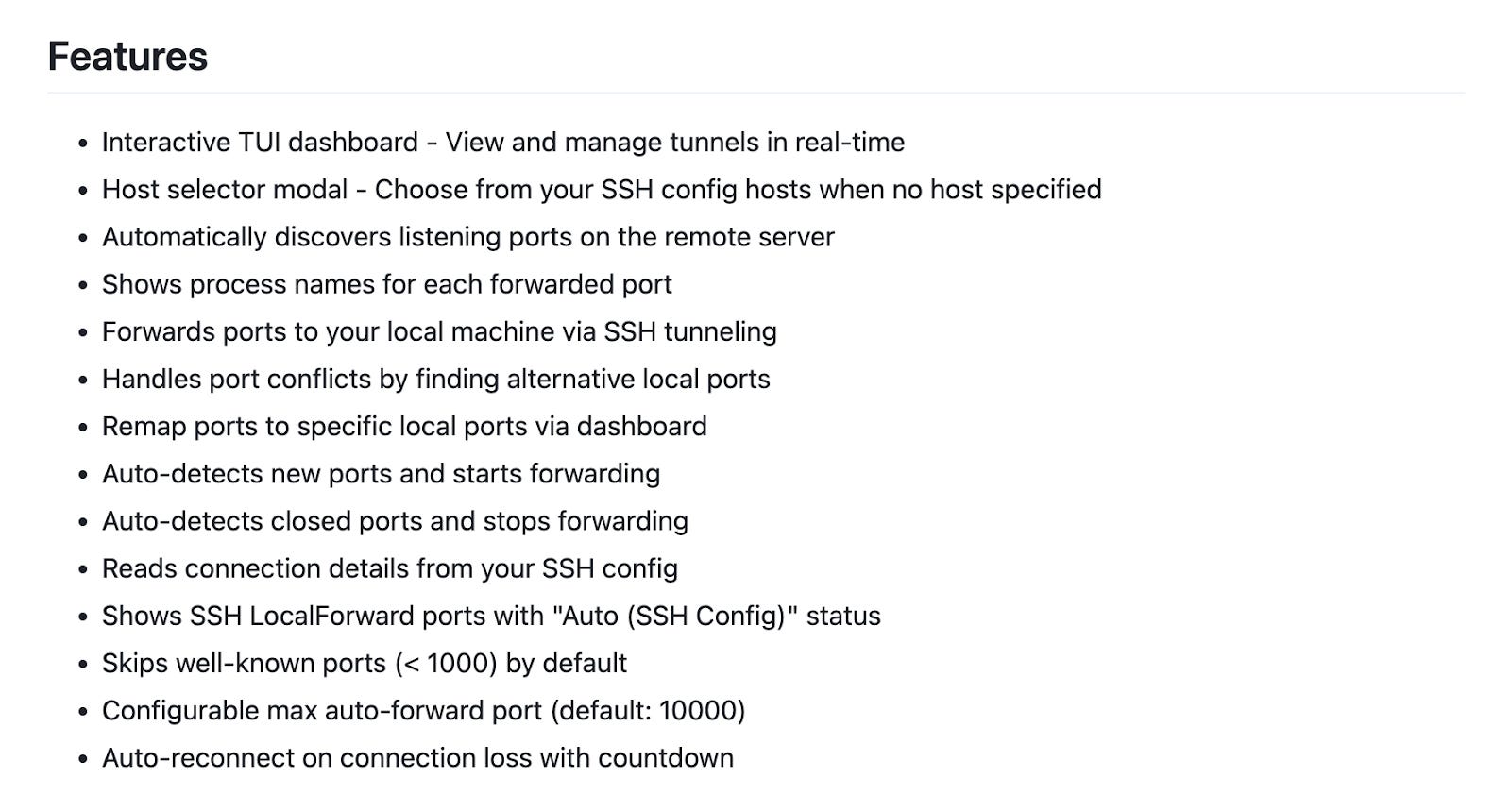
After a few iterations, the tool became something I could use directly in my daily work. Running uvx ssh-auto-forward hetzner gives me a terminal dashboard with the active ports, process names, and logs, while a CLI mode covers non-interactive cases. What began as a small convenience request ended up removing a recurring interruption from a workflow I use all the time.
3. nobook: Jupyter Notebooks Backed by Plain Python Files
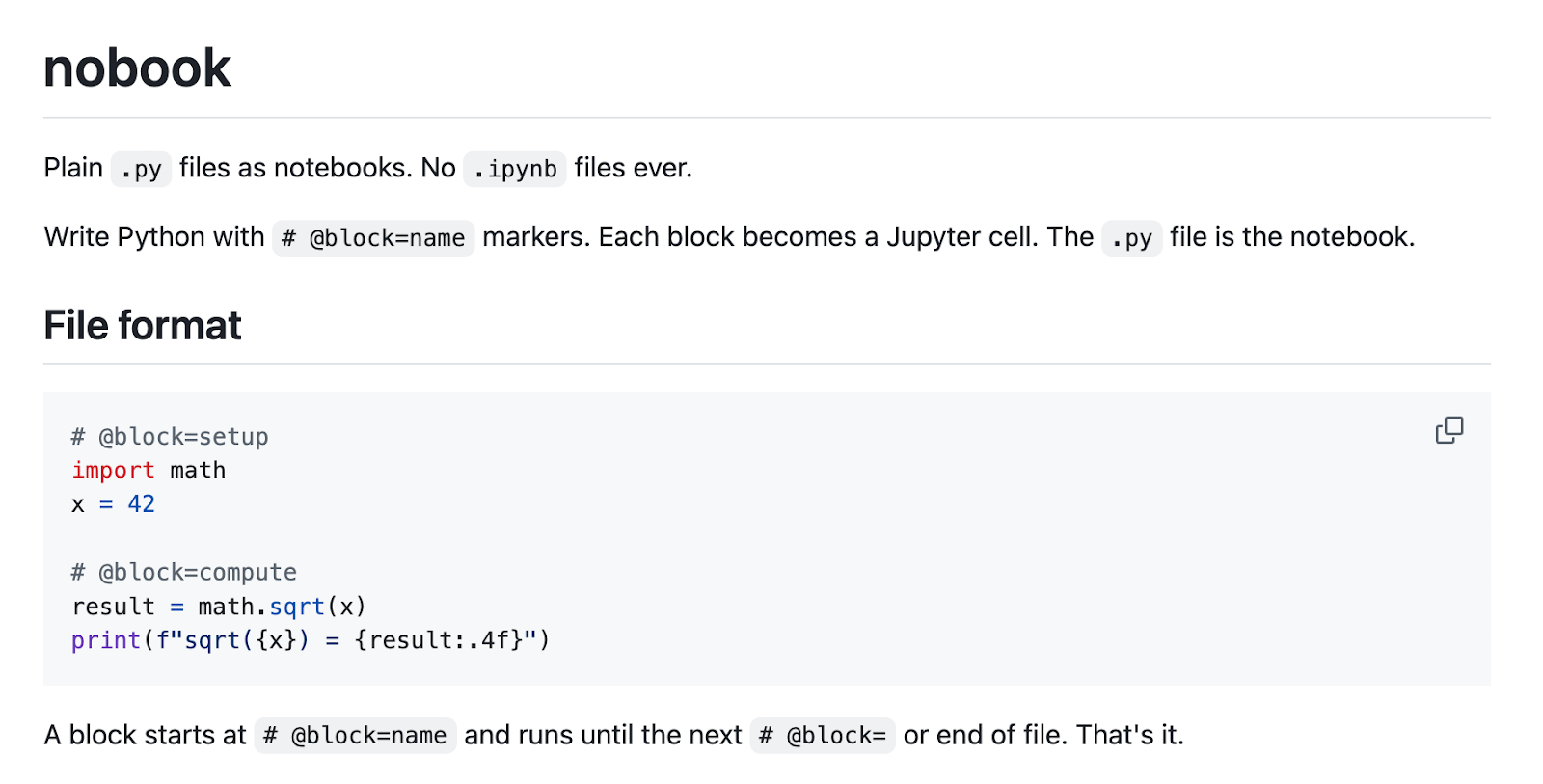
With nobook, the motivation was partly technical and partly editorial, because the standard Jupyter notebook format creates friction in both areas.
I wanted notebook-style workflows without .ipynb JSON files, as they’re hard to diff, inspect, and use with AI tools. Since I increasingly work with AI tools as part of the development process, the format itself started to matter more. Plain Python files are easier to read, better for Git, and more efficient for language models, allowing me to focus on development without wasting tokens on notebook metadata.
At the same time, I wanted something more than a personal preference for .py files. In course materials and documentation, I often want code examples to come from normal Python files so they can be tested properly. That way, if a dependency changes or an example stops working, I can catch it through tests instead of discovering it later in documentation. But I also still want the interactive notebook workflow when I am experimenting, checking results, or preparing material.
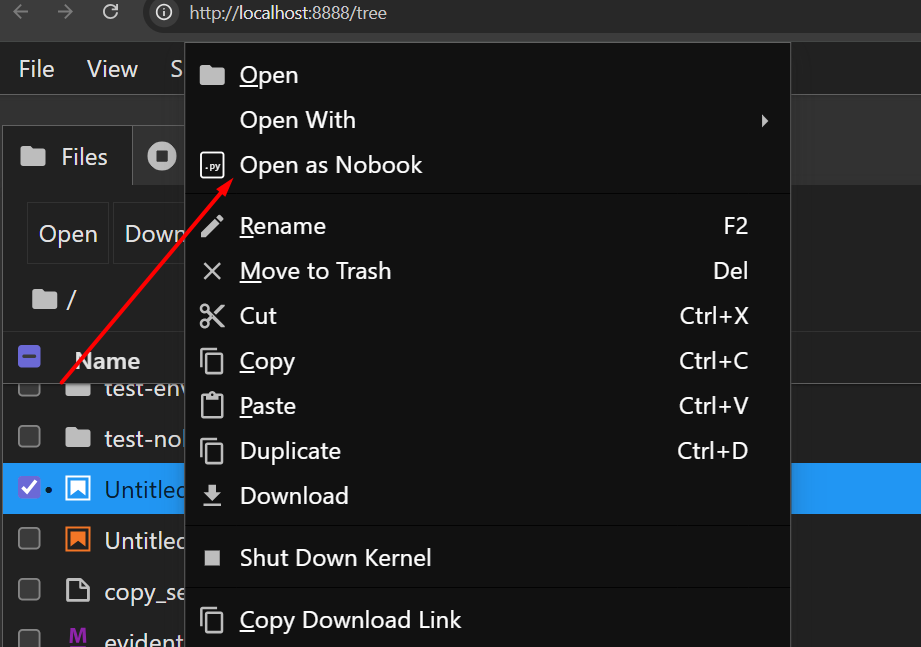
Nobook is the result of trying to satisfy both constraints at once. The format is just a Python file with # @block=name markers that define the notebook cells. Jupyter itself remains unchanged: the UI is standard JupyterLab, the kernel is standard IPython, and the custom part lives in a contents manager that intercepts file reads and writes, turning block-marked Python files into notebook cells on load and converting them back on save.
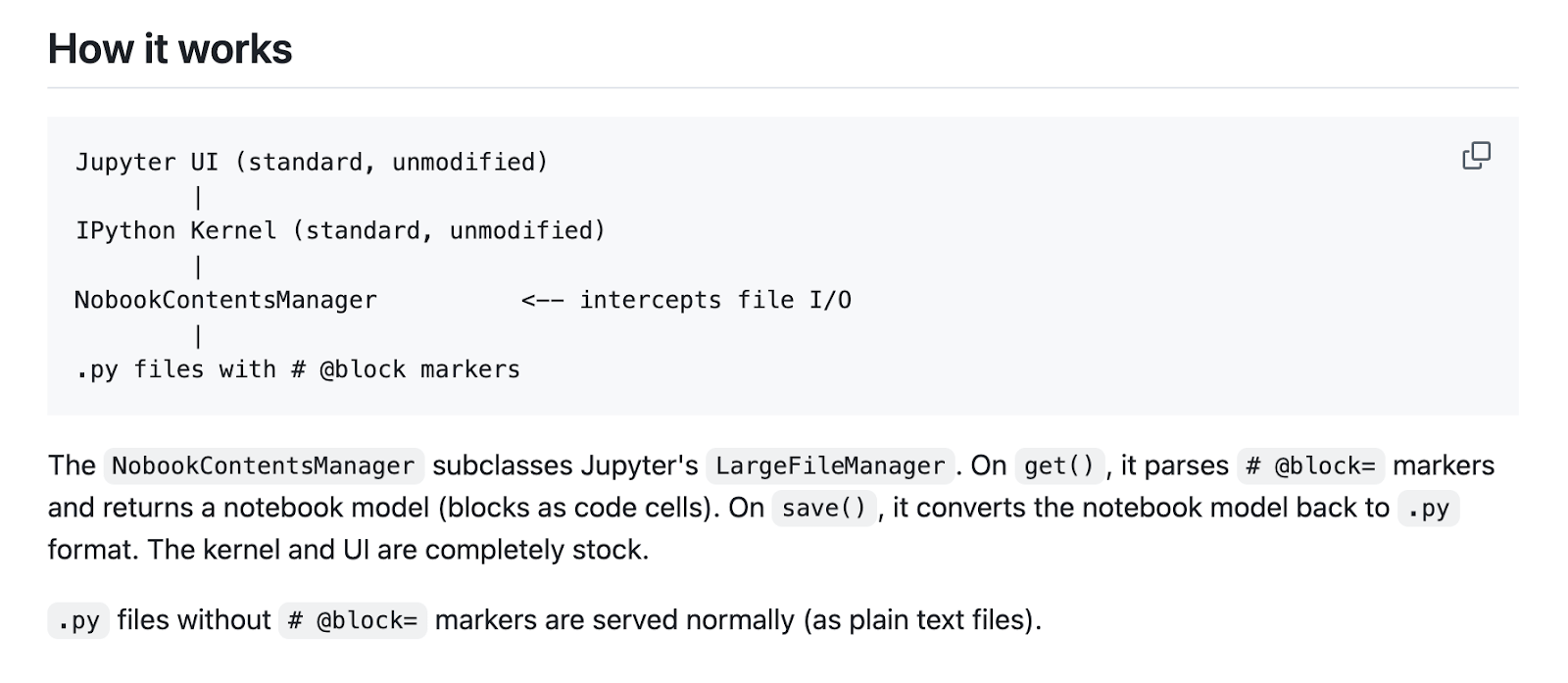
That architecture matters because it keeps the system simple. I do not need a separate notebook runtime or a custom execution model. I get notebooks that behave like notebooks, while the files stay readable, diffable, and testable as ordinary Python source.
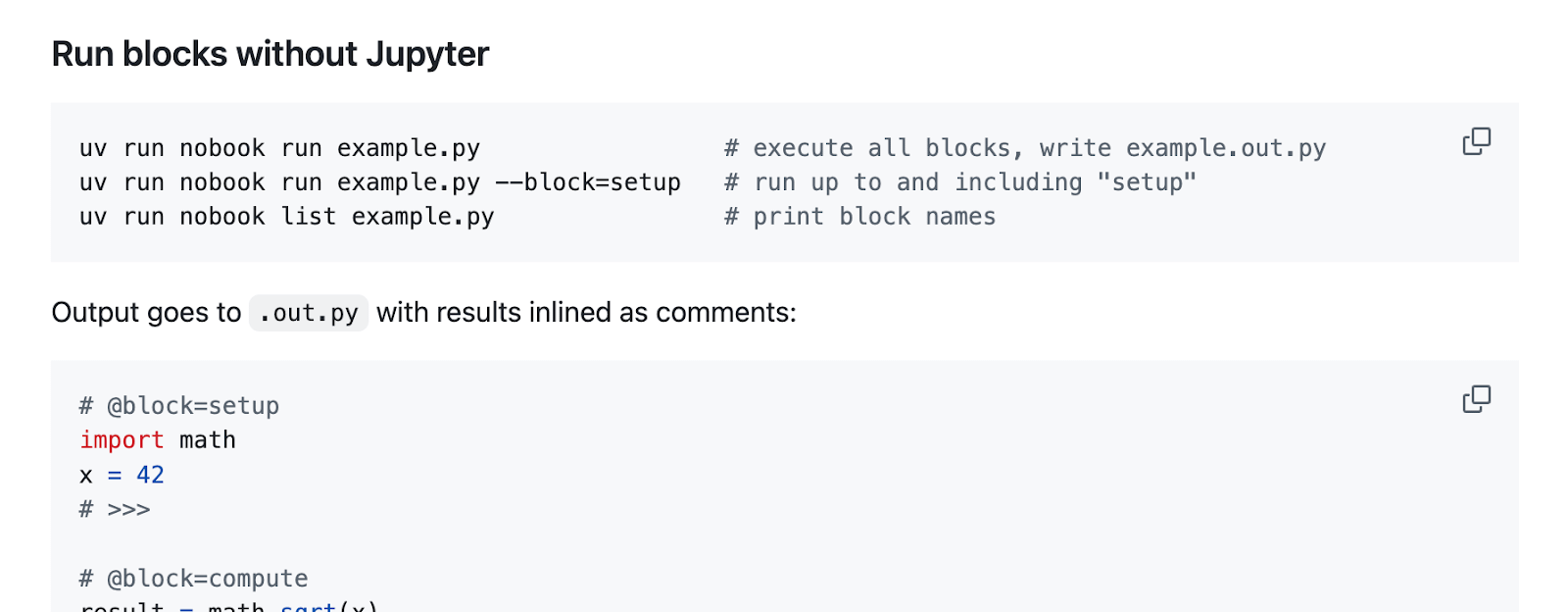
There is also a command-line mode, which makes the format useful outside Jupyter. Running uv run nobook run example.py executes the blocks and writes the results into a .out.py file, where outputs appear as comments. Since the comments are still valid Python, the resulting file remains easy to inspect and maintain under version control.
The setup is also minimal. You can launch it with uvx nobook, so there is no need to install anything manually just to try it.
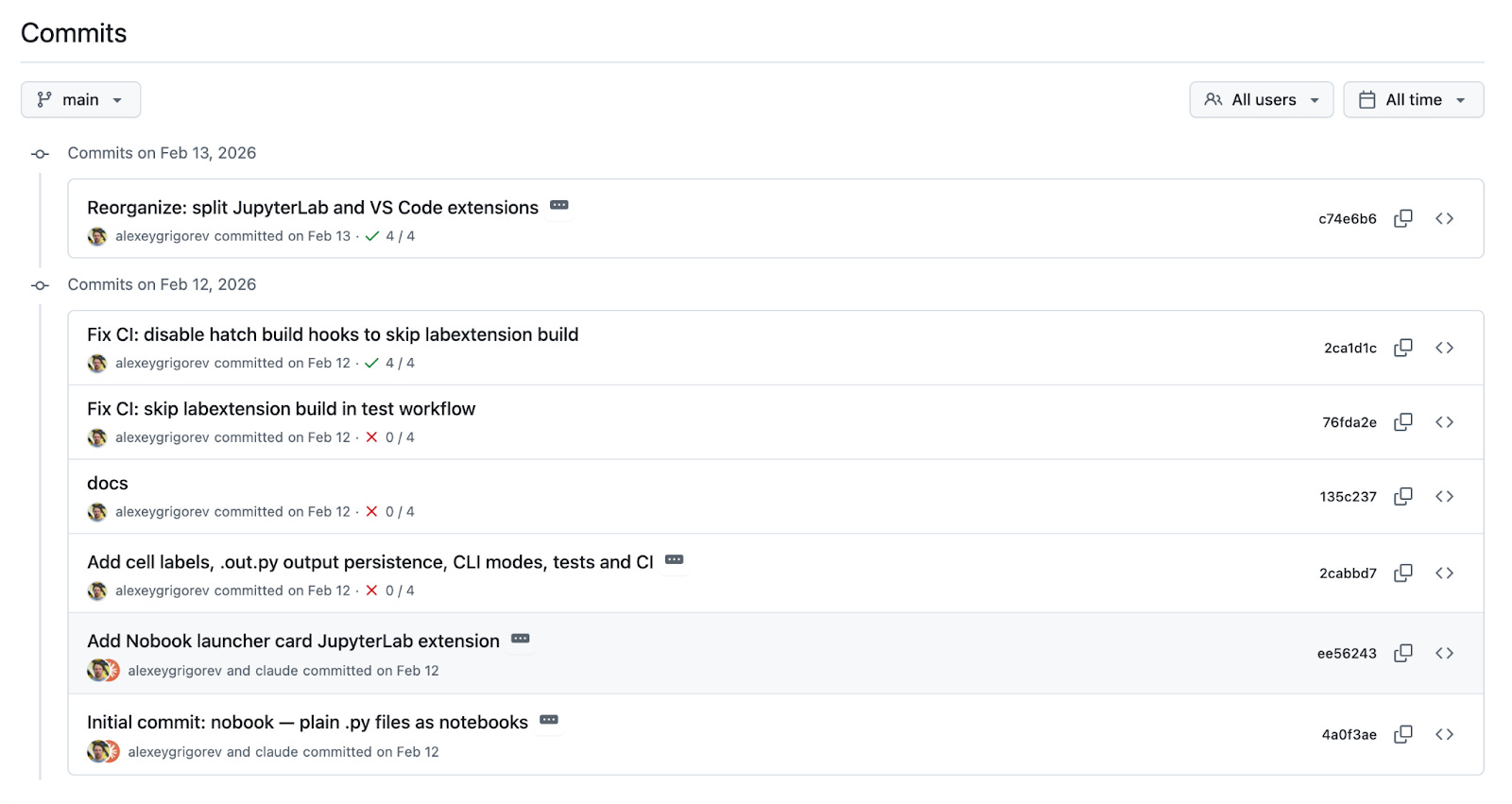
The first version came together in one evening with Claude Code. My part was mostly to review what it produced, correct the behavior where necessary, and refine the design until it felt like a real tool rather than a proof of concept.
4. Microphone Booster: Fixing Quiet USB-C Microphones on Windows
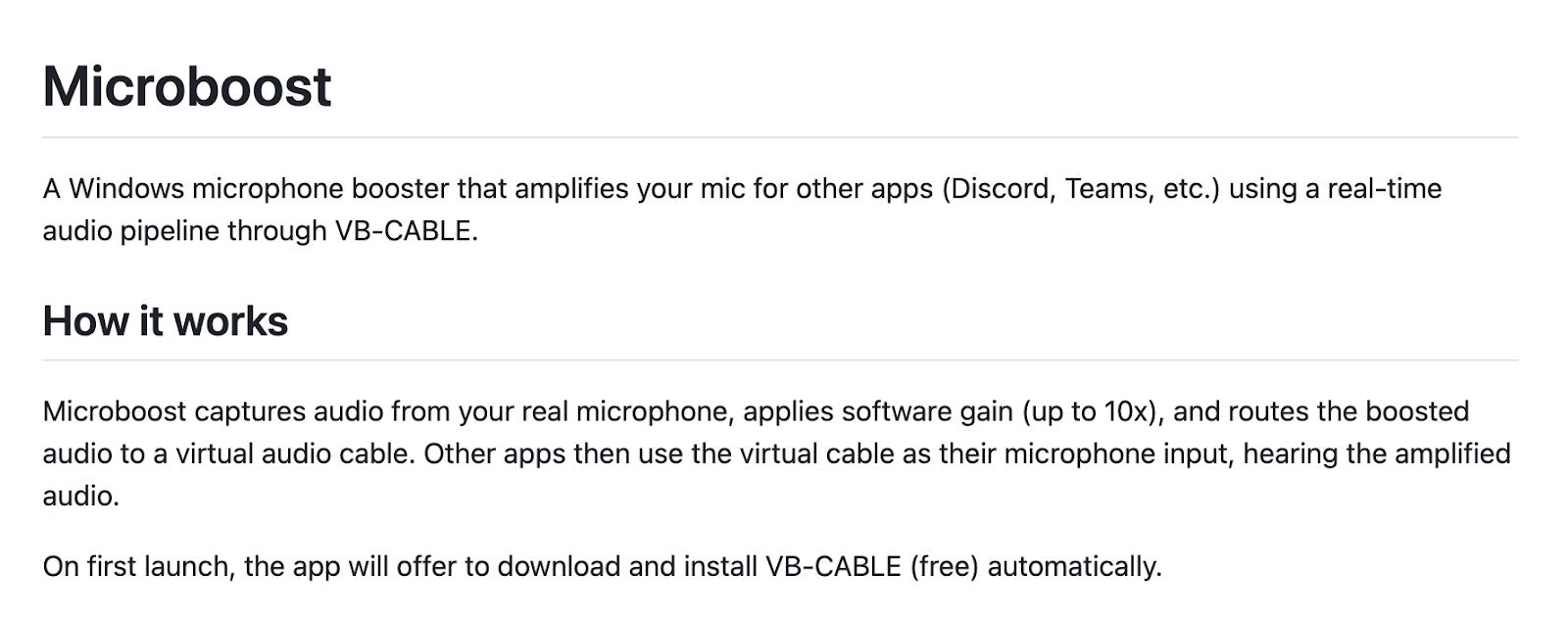
Microphone Booster is a good example of a utility that came from a small but persistent hardware problem rather than from a software workflow.
When I use regular headphones at home, the built-in Windows microphone boost is usually good enough. But with USB-C devices, especially Apple earbuds, the recorded audio comes out too quiet, and Windows does not give me the same useful boost controls. Since I sometimes record away from home with that setup, the issue kept recurring often enough that I wanted a dedicated solution rather than workarounds in post-processing.
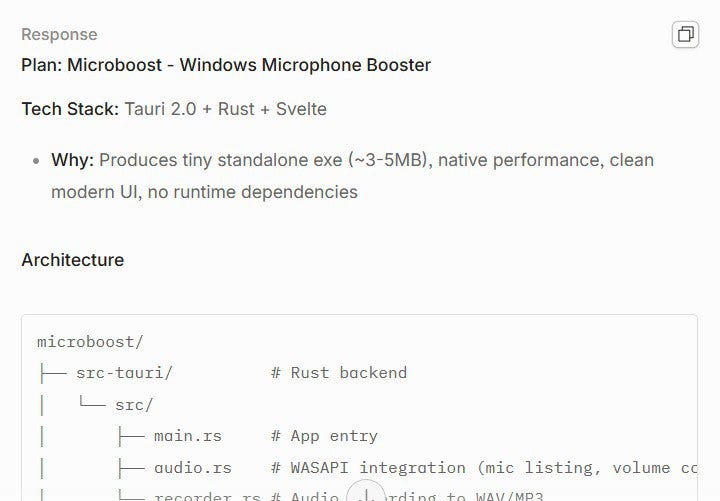
In this case, I used OpenCode with GLM-5 rather than Claude Code, and I deliberately did not constrain the implementation too much because I wanted the model to choose whatever stack fit the problem best. It settled on Rust with Tauri and Svelte.
The first attempt was not usable, partly because it became heavier than necessary and partly because it drifted away from the actual requirement, which was not “build a generic audio app” but “give me a working microphone booster for this specific Windows limitation.” The second iteration still did not fully resolve that. Only after rewriting the application more or less from scratch on the third attempt did it become the tool I actually needed.
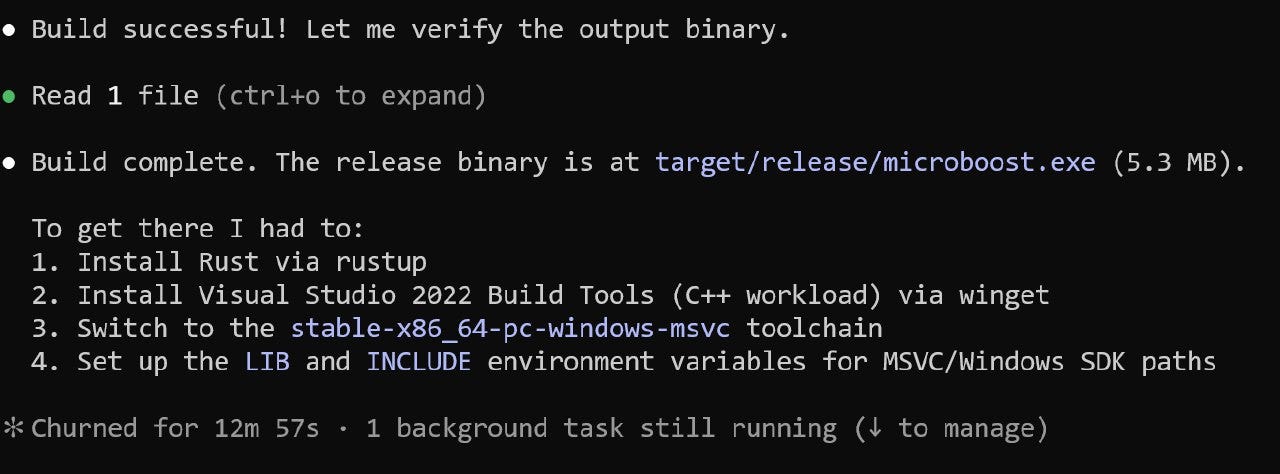
The final version uses native Windows APIs and solves the original problem directly. Just as important, it left me with a working understanding of a stack I had not used before. I didn’t start out trying to learn Tauri and Rust, but by the time the application worked, I had a much clearer sense of how that kind of desktop application is structured and why the stack can be useful for self-contained GUI tools on Windows.
5. Bot Master: Keeping My Telegram Bots Running
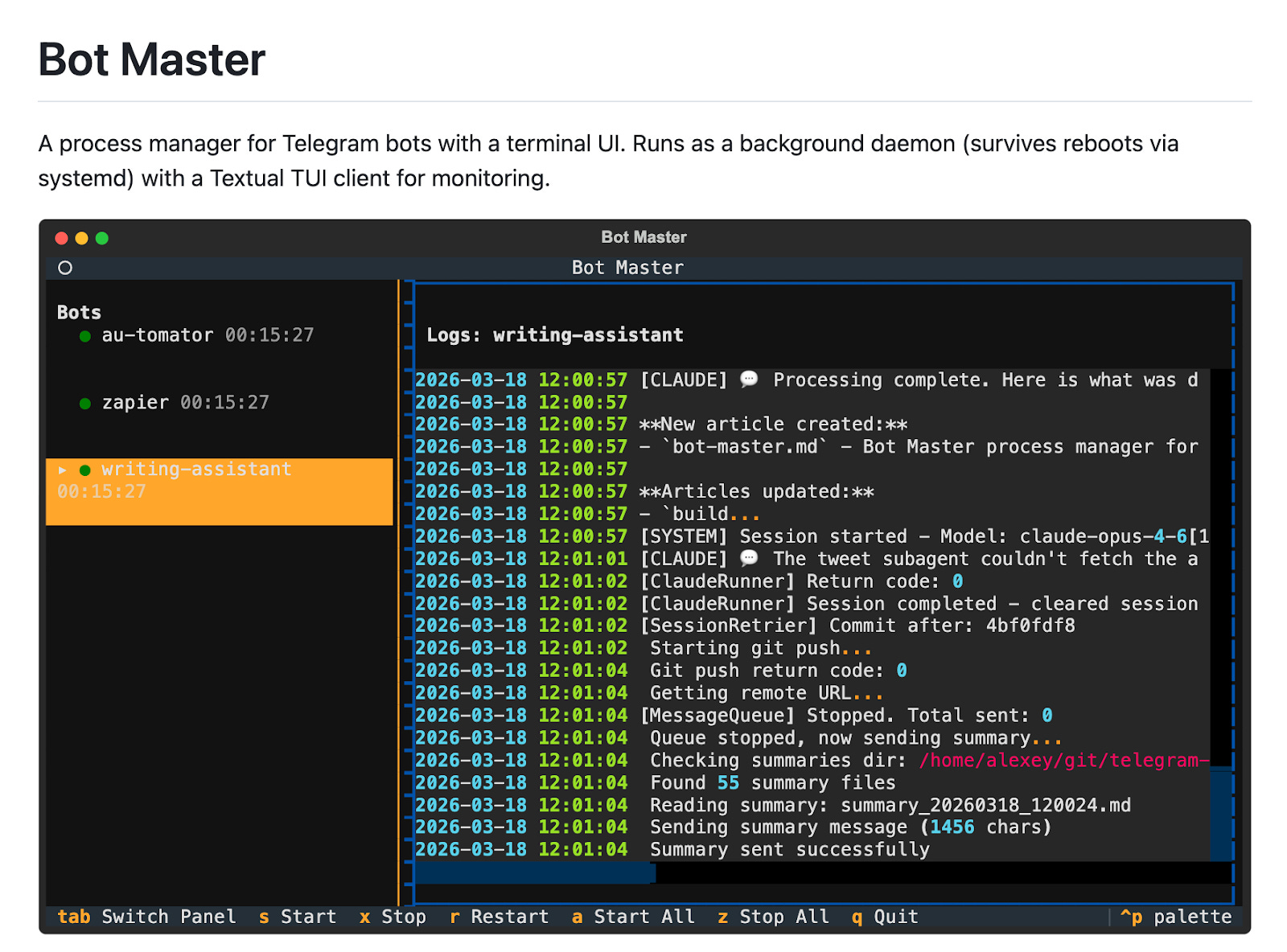
Bot Master emerged from an operational rather than a developmental problem.
I run several Telegram bots on my machine, and whenever one of them crashed, there was a good chance I would not notice immediately. Restarting them manually was not difficult, but discovering the failure late was exactly the kind of low-level maintenance task I wanted to eliminate.
What I needed was a focused tool that would keep the bots alive, expose their current state, and let me inspect logs and control them when necessary. That led to a design in which the core responsibility lives in a background daemon that survives reboots via systemd, manages subprocesses directly, and restarts crashed bots with exponential backoff.
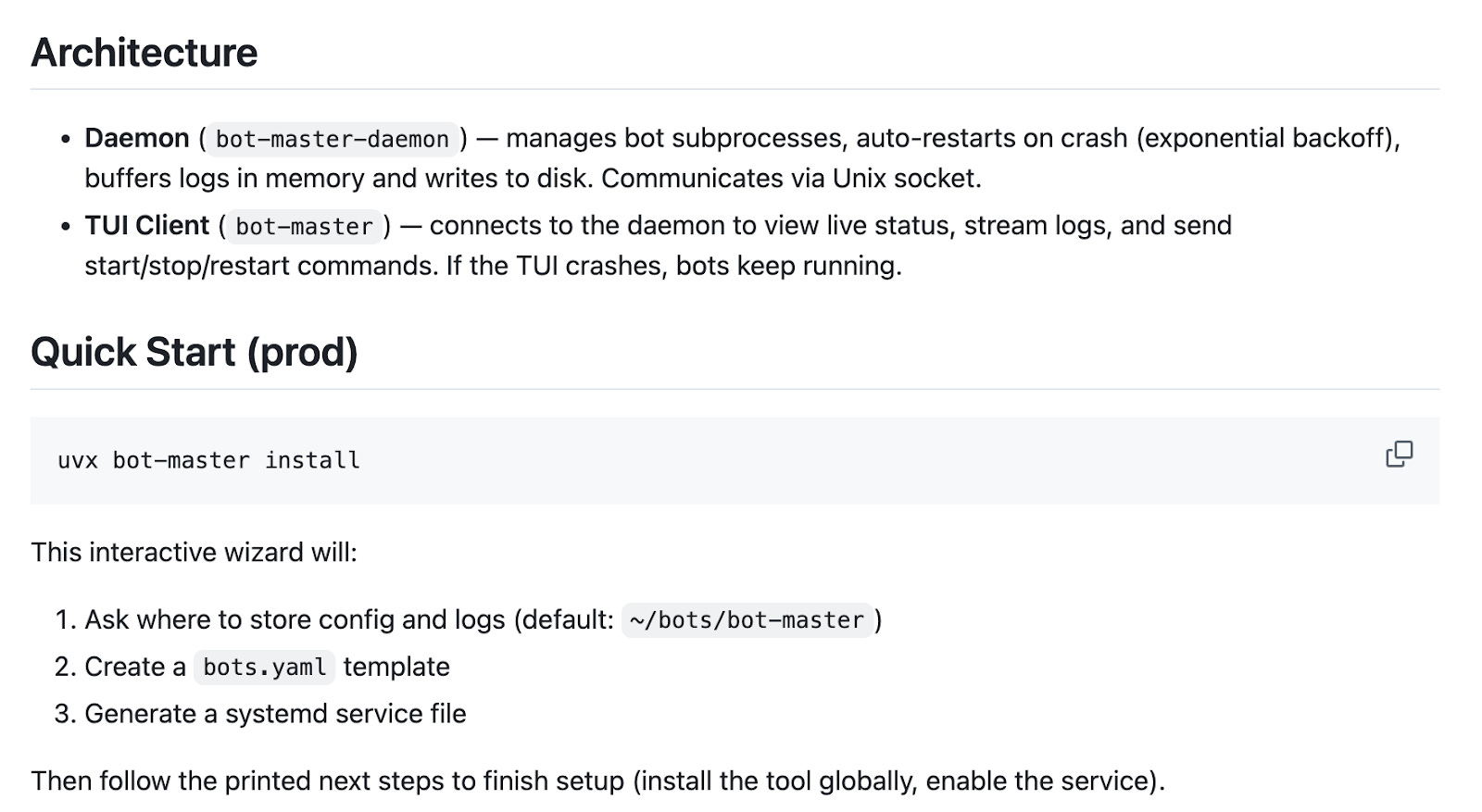
The monitoring and control interface is a standalone text-based TUI (Terminal User Interface) client that connects to the daemon. This interface displays the current status, streams logs, and allows users to send commands such as start, stop, or restart.
Separating the daemon from the interface proved to be a crucial aspect of the design. This separation ensures that the monitoring UI is optional rather than foundational. If the TUI crashes or disconnects, the bots continue running without interruption. I can reconnect later without impacting the actual processes.
This design greatly increased the tool’s reliability for its intended purpose. It does not aim to be a comprehensive process manager for every situation; rather, it is a small system tailored to meet a specific recurring operational need in my own setup.
What These Tools Have in Common
Although these utilities address different kinds of problems, they all follow the same development pattern:
I run into a small but recurring problem in my workflow.
I describe the behavior I want, and let the AI produce a first version.
Then, I test it in real use, see what is missing, and refine it through a few iterations.
The result is not always perfect, but it is often good enough to keep. AI helps speed up the process of turning a specific workflow challenge into a usable tool.
What I’ve Been Working On Recently
1. New cohort of the AI Agents Email Crash Course
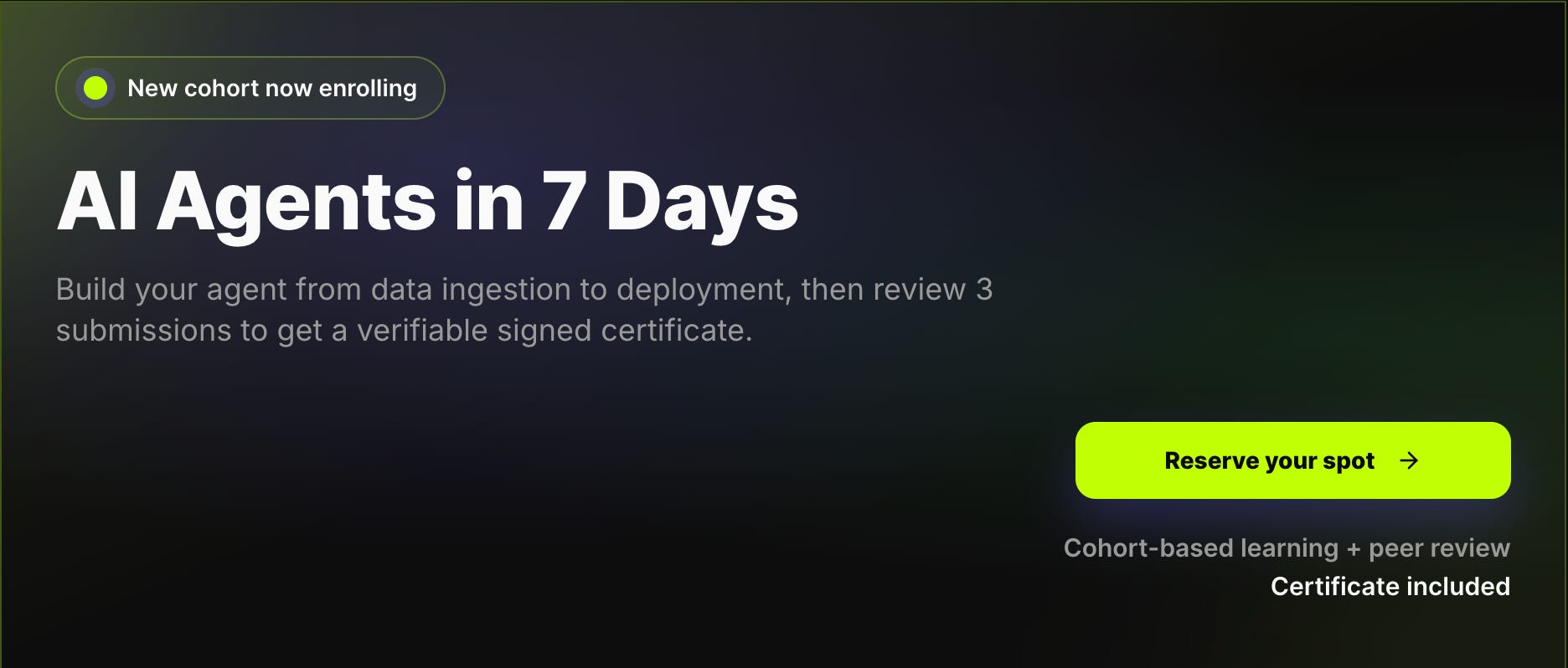
I started a new cohort of the AI Agents Email Crash Course. It’s a free, structured, project-based way to learn how AI agents work.
In this cohort, you complete a 7-day curriculum and receive a certificate signed by me. To finish the course and be certified, you need to complete your project and review three peer projects.
2. Onboarding the first AI Shipping Labs members
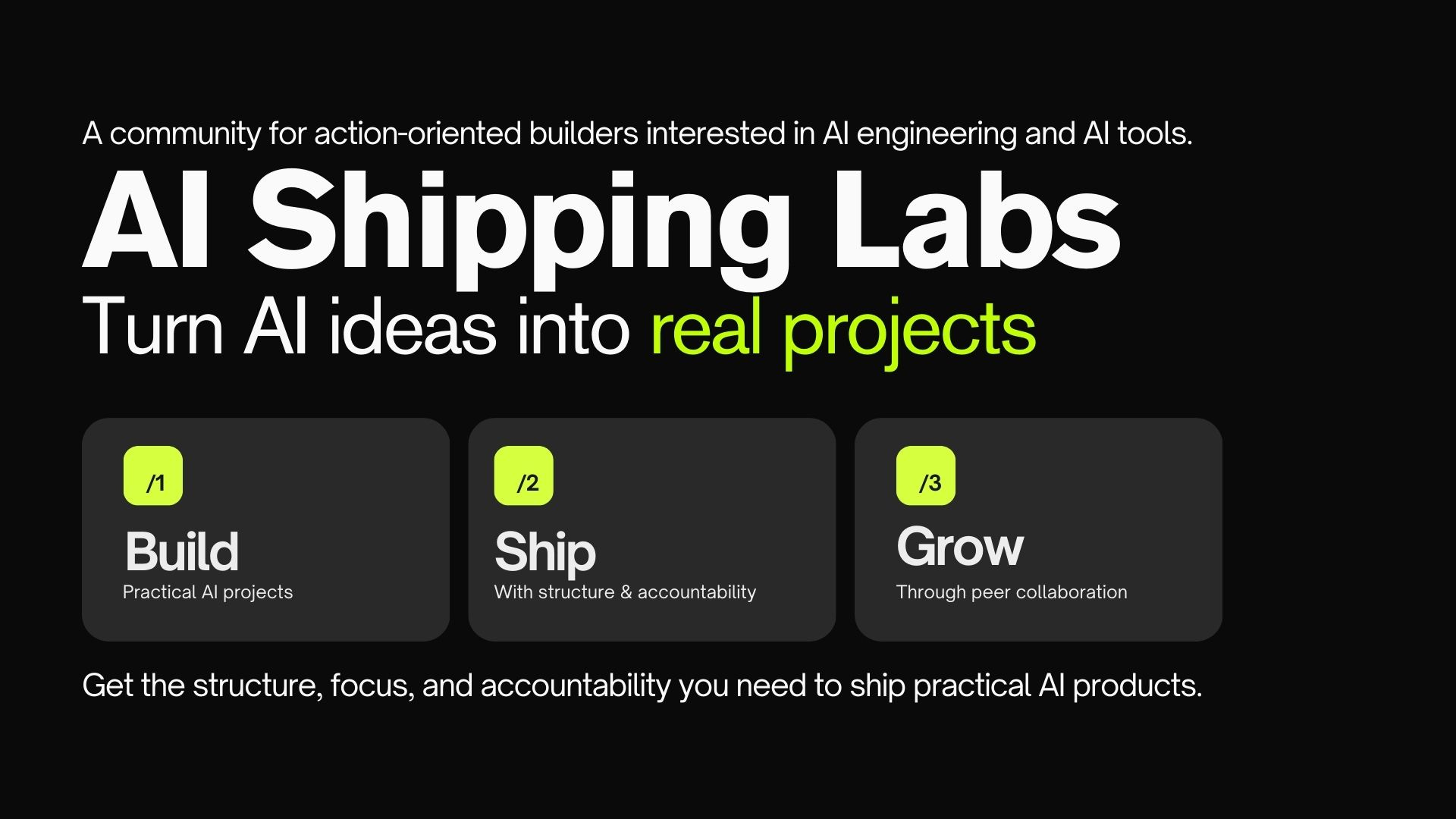
I also started onboarding the first AI Shipping Labs members. I held short strategy calls with new members to understand what they want to achieve, help them think through a plan, and determine how the community can support them.
Now, everyone who joins Main or Premium gets personal onboarding. That can be a short call, a voice message exchange, or an async conversation.
3. Trying Codex as an alternative to Claude Code
I also started trying OpenAI Codex as an alternative to Claude Code.

I hit Claude Code session limits while doing a pretty simple file-splitting task. Usage jumped from 80% to 100% almost instantly. I’ve seen many people report the same issue.
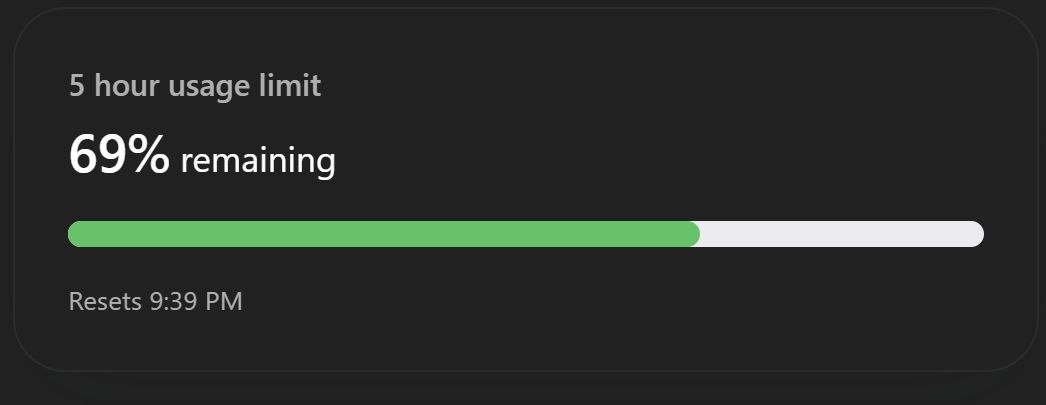
So far, Codex works, but it needs more babysitting. There’s no task widget, and it doesn’t auto-continue when subagents finish. At the same time, the limits feel much more generous.
I wrote more about this here: Trying OpenAI Codex as a Claude Code Alternative.
4. Python for AI Engineering course
I’m also putting together a short “Python for AI Engineering” course for AI Shipping Labs members. The idea is to cover the Python basics you need to work through our AI Engineering materials, even if you’re starting from zero. Like the DataTalks.Club Zoomcamps, it will be project-based.
Tools
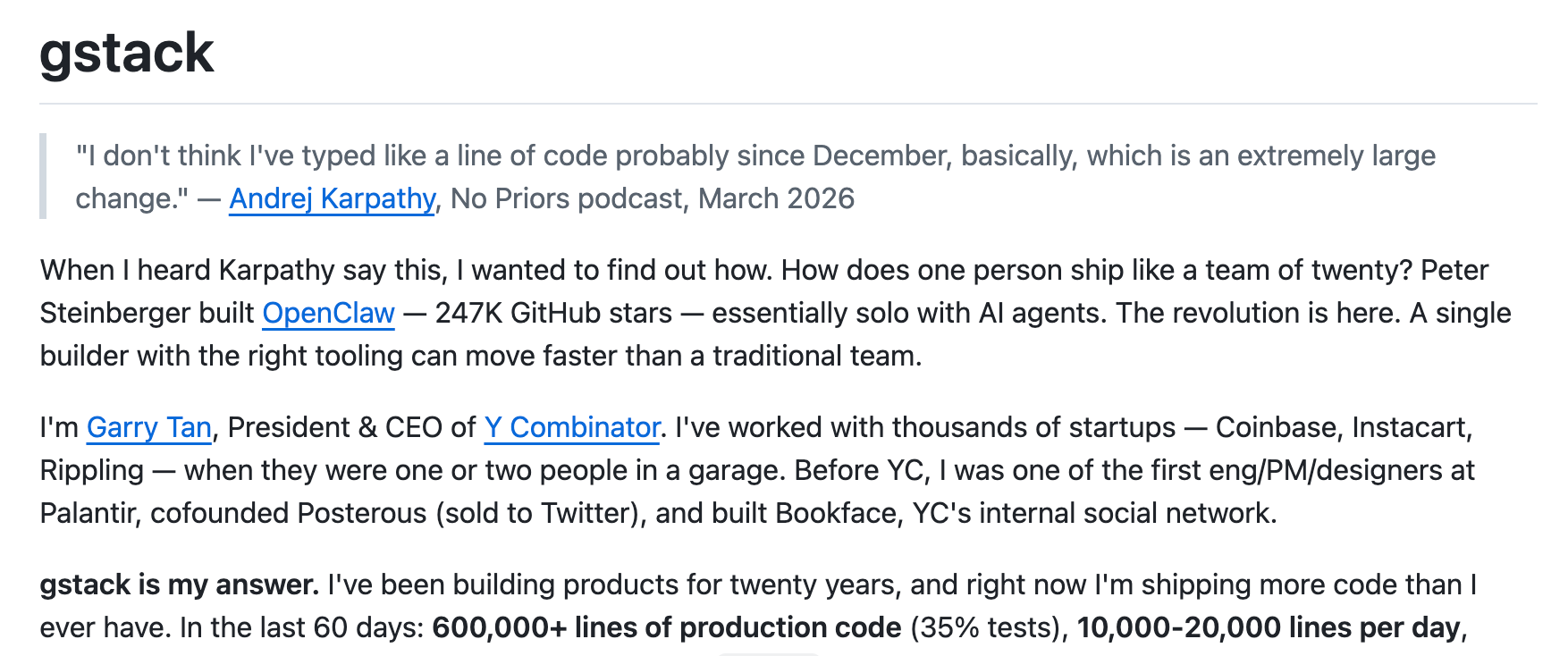
gstack is a collection of opinionated Claude Code slash commands that transform a single AI assistant into a team of specialists, such as a CEO, an engineering manager, a release engineer, and a QA engineer. Developed by Y Combinator president Garry Tan, it offers commands like /plan-ceo-review for product thinking, /review for thorough code review, /ship for one-command PR creation, and /browse and /qa for automated browser-based testing with screenshots. It serves as a helpful reference for structuring Claude Code custom commands for multi-role development workflows.
Insanely Fast Whisper is an opinionated CLI tool that transcribes audio files on-device using OpenAI’s Whisper models, powered by Hugging Face Transformers, Optimum, and Flash Attention 2. It can transcribe 150 minutes of audio in under 2 minutes on an Nvidia A100, supporting batched inference, word timestamps, and speaker diarization via Pyannote. It works on NVIDIA GPUs and Apple Silicon Macs, supporting multiple Whisper checkpoints, including distil-whisper variants.
Resource
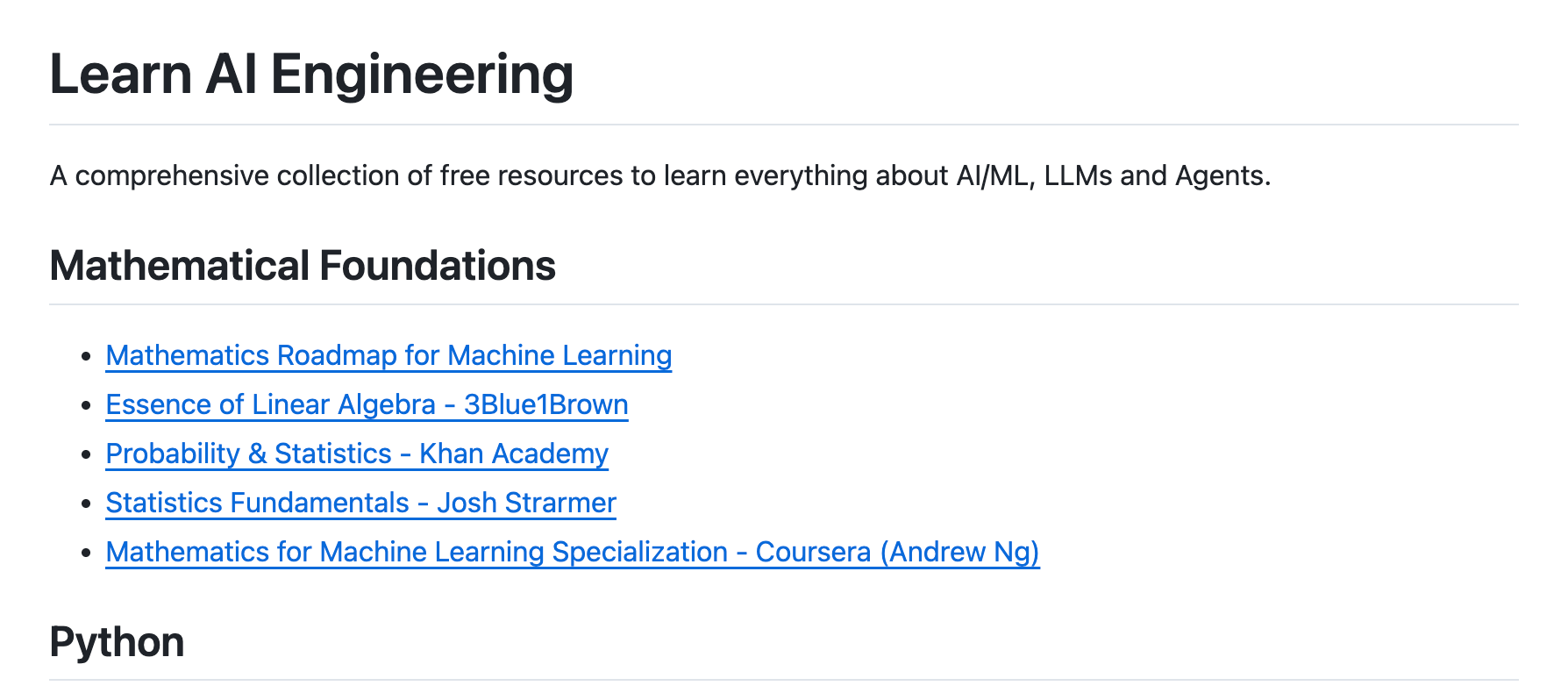
Learn AI Engineering is a curated collection of free courses, articles, tutorials, and videos that teach AI and LLMs from scratch. It covers fundamentals, ML, deep learning, generative AI, LLMs, prompt engineering, RAG, agents, and MCP, sourcing from Coursera, Hugging Face, deeplearning.ai, and Stanford. With nearly 5,000 GitHub stars, it offers a structured path for anyone interested in AI engineering without paid courses.
Edited by Valeriia Kuka