

Lately, I’ve been to three conferences in a row: Darmstadt, Amsterdam, and Porto. The work doesn’t slow down for any of that, so I have to keep things moving.
In addition to the conferences, I’ve been traveling a lot with my child. We went away over the Easter holidays. May 1st was a long weekend in Germany. I’m dictating this just after we got back from another long weekend, 14-16 May, in Stuttgart and the Schwarzwald. And this Sunday, I’m traveling to Vienna again for a concert (drop me a line if you want to meet for coffee!).
That’s a lot of traveling, and I want to use all this time to do something useful.
My day-to-day schedule is also uneven on its own:
I take my son to school in the morning
I go to the gym
I have lunch meetings
I pick the son up at 4 PM
Between all those slots, I have a lot of commute time. The rest periods between sets at the gym add another minute or two of free time per set.
I want to use all of that in-between time. I have too many projects running. The AI Shipping Labs site alone takes a lot of work. I want them to progress.
This article is about how I work on my phone in that spare time: on trains, buses, while commuting, between school runs, gym rest periods and even on planes.
In this post, I’ll share:
Why I moved to a permanent remote server
The small tools that make terminal work possible from a phone
How voice became my main interface to coding agents
Tricks for handling visual tasks without access to a laptop
How this article itself was created while moving around
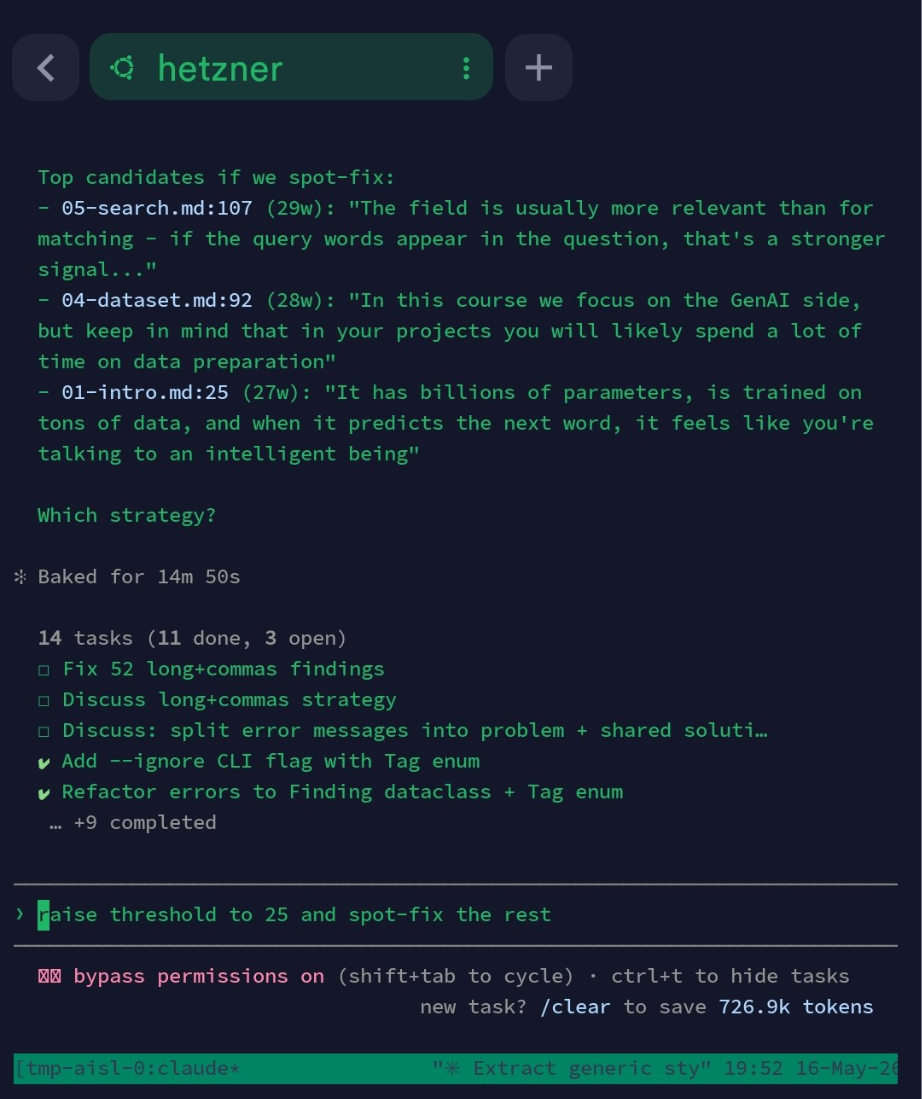
The remote setup
From GitHub Actions to a dedicated server
Working from a phone isn’t new for me. I’ve been practicing it for a long time. My whole DataTalks.Club routine was built around it so I could keep things moving from anywhere.
When GitHub Copilot appeared, I could do even more. I already wrote how I used it in Shipping Features from my Smartphone with GitHub Copilot. Under the hood, it relied on GitHub Actions to do the work. It was a remote environment, but not one I owned. When the task was finished, this environment was gone, so I couldn’t really customize it for myself.
My approach changed in the last few months. I now rent a dedicated Linux server available 24/7, and Claude Code, Codex, and OpenCode are running there.
On Android, I use an SSH client called Termius. I connect to the server and run whatever I need.
Keeping sessions alive across disconnects
Connecting via SSH from a phone means dealing with constant disconnects, which happen often when traveling. If an agent is running directly in the SSH shell, the process dies the second the connection drops.
The fix is tmux (Terminal Multiplexer), a tool that manages multiple terminal sessions and keeps processes running in the background. I run all my agents inside tmux sessions. If I lose my connection, the work doesn’t stop. I just reconnect and pick up exactly where I left off.
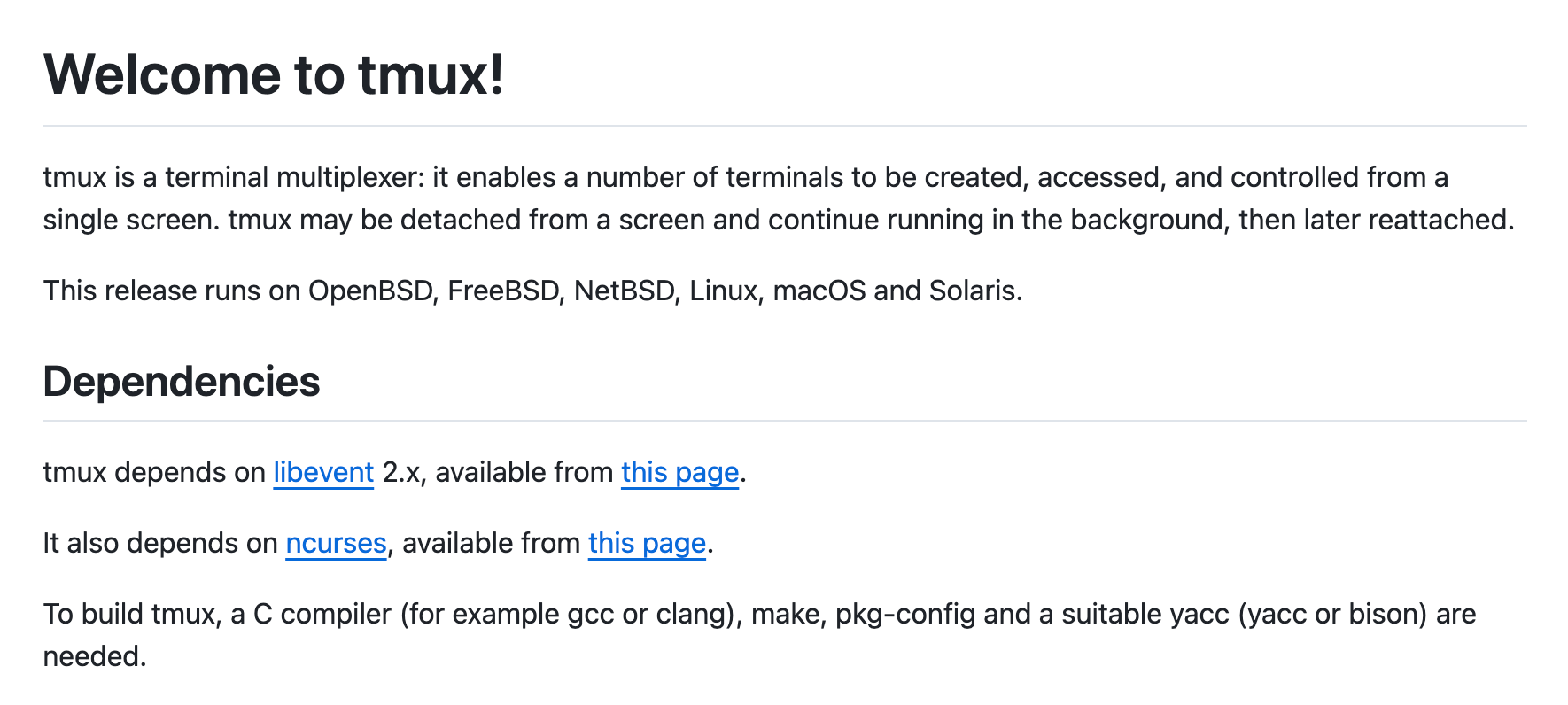
But once I started using tmux heavily, I ran into a new problem. Typing tmux commands from a phone is painful. The standard commands look like this:
tmux new-session -s some-long-session-name
tmux attach -t some-long-session-name
With long session names, that is impossible from a phone.
So I built tmuxctl to fix this:
tlists all sessionst 1attaches to the session with index 1t -creates or attaches to a session named after the current folder
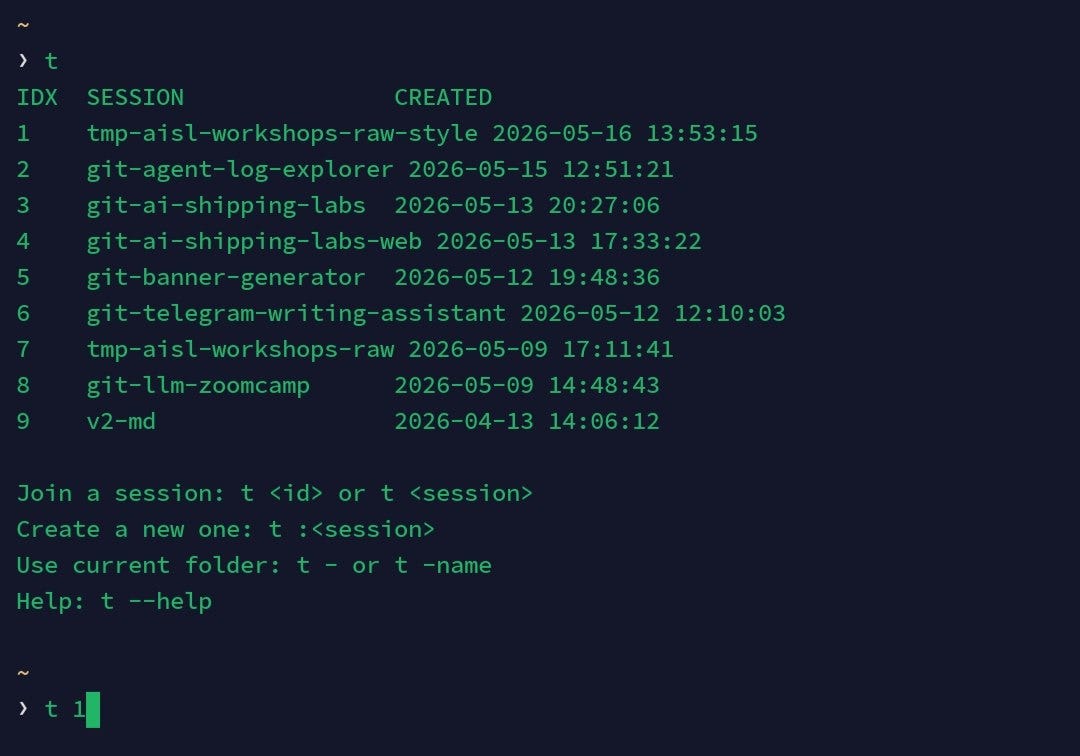
t listing all current sessions on the server, ready to attach by indexI also use Makefiles for everything that requires more than a few characters of typing. I always liked Makefiles, but the phone makes them mandatory.
Launching agents with two keystrokes
With sessions staying alive, the next bottleneck is launching agents.
Typing out the full invocation for any of these from a thumb keyboard is too slow. I’ve set up short aliases:
csp: Claude with skip permissionscy: Codex with --yolo modeoc: OpenCode
Two or three keystrokes and the agent is running.
“Skip permissions” and “YOLO” sound reckless. But I understand the risks: these agents are running on an isolated remote machine with no access to production environments.
I try to be very careful when granting my agents access to production. Maybe you remember the incident I described in How I Dropped Our Production Database and Now Pay 10% More for AWS?
I learned the hard way that you shouldn’t give your agents access to production. They can only reach a sandbox AWS account with a temporary 1-hour session. Real deployments are always triggered through CI, never on the remote machine.
If an agent does something destructive, the blast radius is limited to this one machine. I can rebuild the entire environment from my bootstrap scripts in minutes. That isolation is what makes these “reckless” shortcuts safe to use.
Forwarding remote ports automatically
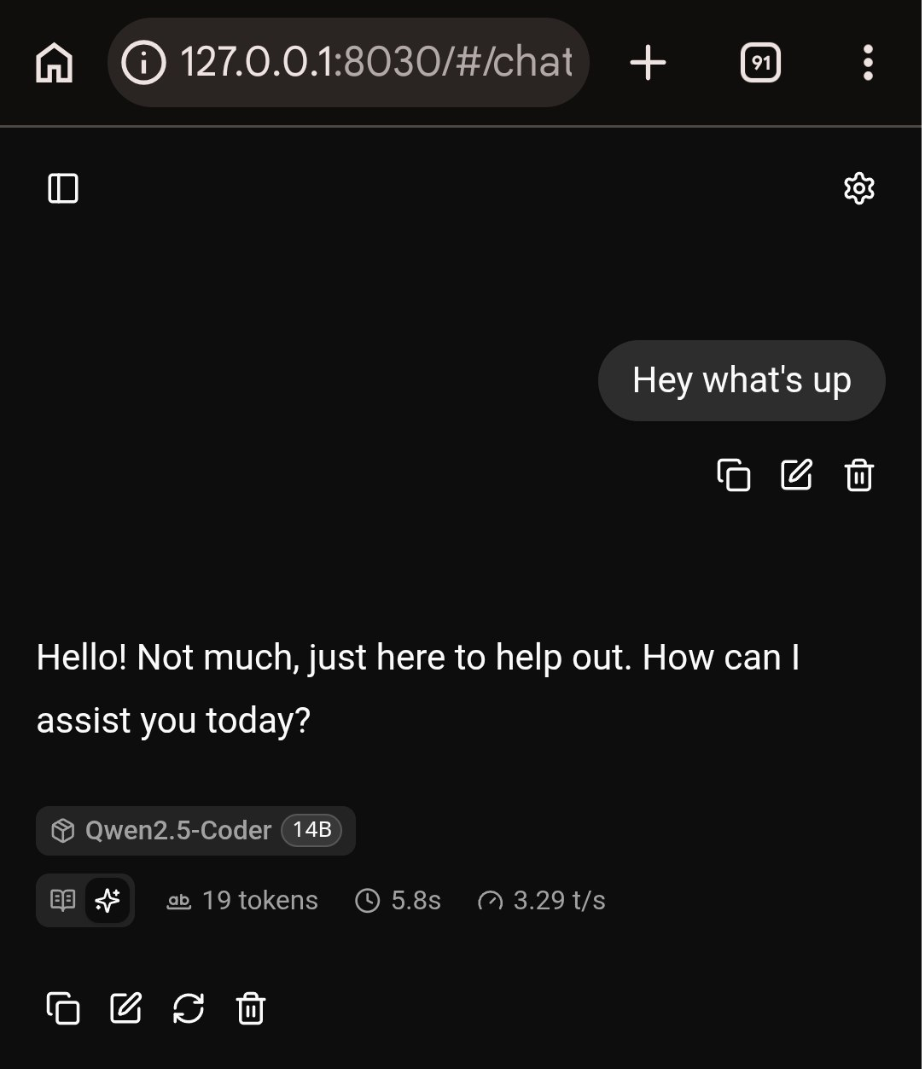
The agents are constantly spinning up local servers: a dev environment, a local LLM, or a quick preview tool. To actually see any of that from my phone’s browser, I need those remote ports forwarded back to my localhost.
Standard Android SSH apps are a pain for this. They force you to enter ports manually and offer no auto-detection of what’s currently running. Every time a new port opens, you have to stop and configure it, which completely breaks the flow.
On my laptop, I’d already solved this with ssh-auto-forward, a Python utility I mentioned in 5 Useful Utilities I Built with AI Coding Assistants. It just sits there, monitors which ports open on the remote server, and automatically maps them to my local machine.
I needed that exact same automation on my phone. I handed the Python source to an agent and told it to port the entire logic over to a native Android app.
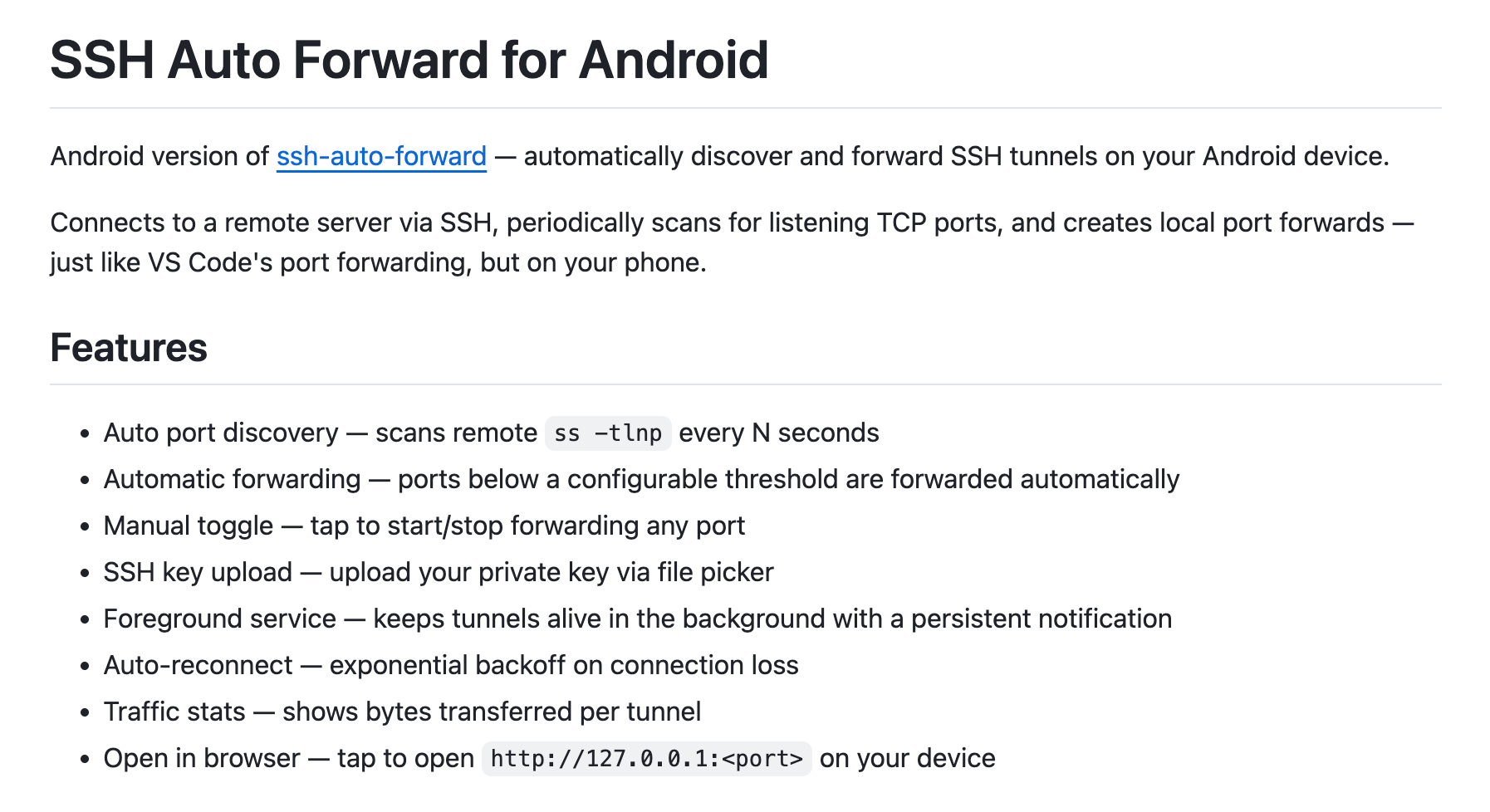
It created ssh-auto-forward-android in Kotlin. I can understand Kotlin a bit because I used to be a Java developer, and Kotlin looks similar to Java. But I have no intention to read this code, just like I never looked inside the Python version. It works the way I need it to, and that’s enough for me.
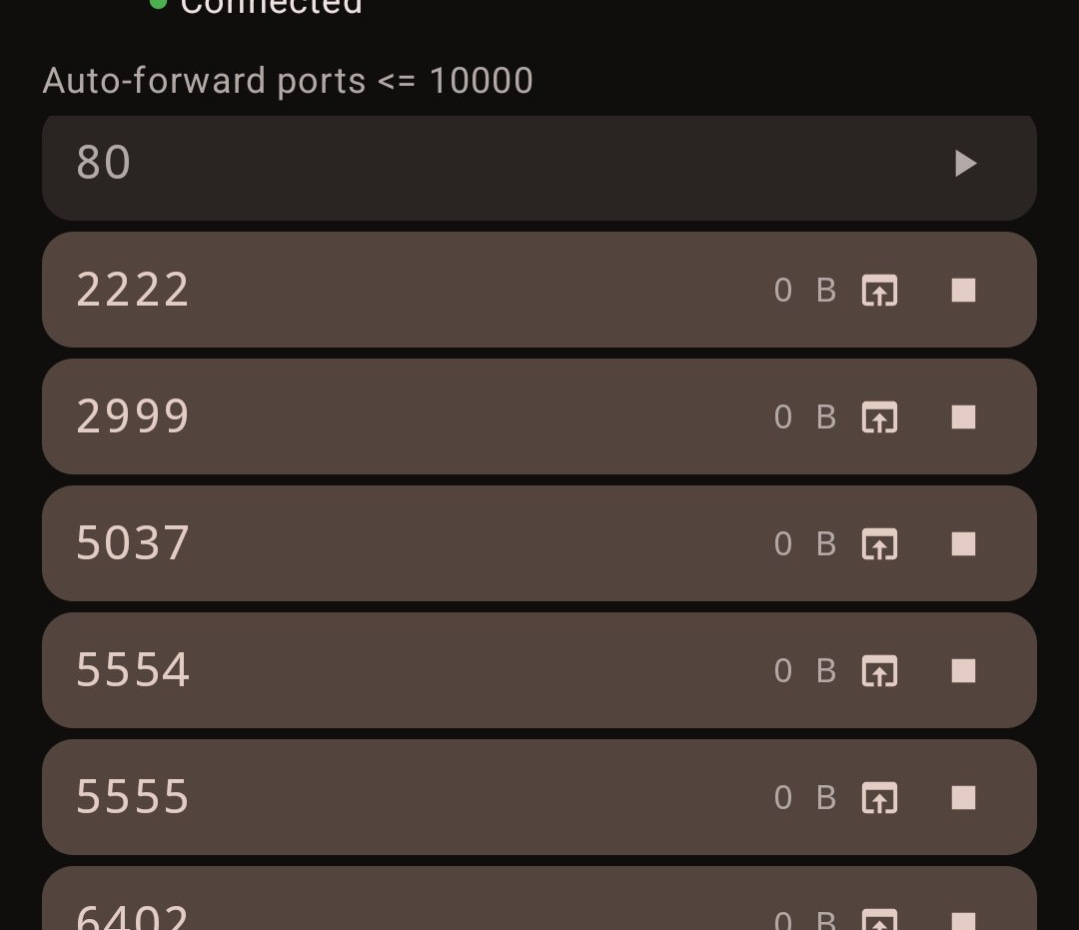
I open the app, tap Connect, and see the list of forwarded ports. Tapping a port row opens the browser on localhost.
Talking to the agent instead of typing
Even with custom shortcuts and tmuxctl, typing any prompt on a phone is a nightmare. So I stopped typing and started talking to the agent instead.
My primary tool for this is an Android keyboard called Typeless. I open a session, trigger dictation, and just talk. Typeless processes my stream of thought into clean, structured text and drops it right into the terminal input.
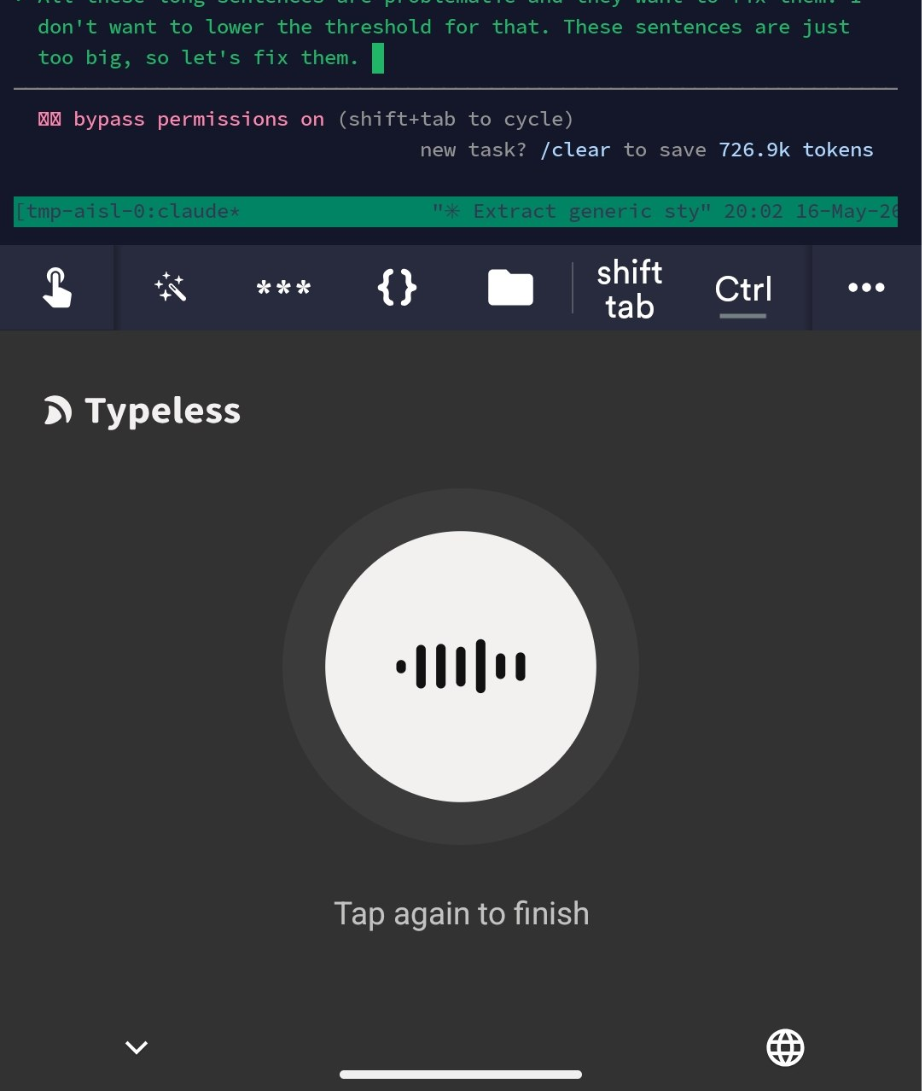
Typeless has one problem: I’m on the free version and hit usage limits. When that happens, I fall back to Android’s built-in voice recognition. It doesn’t work well for the terminal, and the input is messy, but the agents mostly understand what I mean.
When I need to record something longer, I switch to Google Recorder. I open the app, record what I want to say, tap Share, and create a public link. I sent that link to the agent. The agent uses a skill to download the file and transcribe it. Finally, it uses the content as instructions.
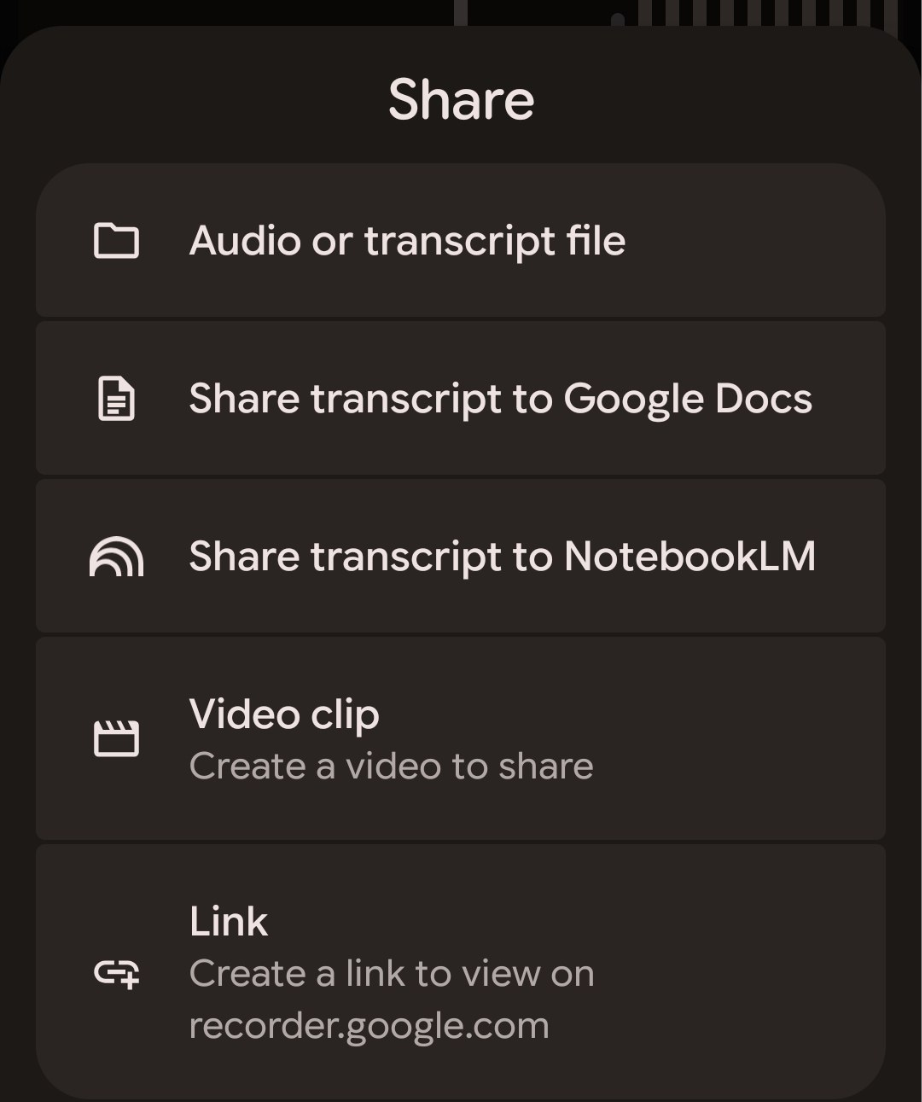
I like Google Recorder because it works offline too – also on planes. When I’m on a plane, I open my laptop to review the code or run the local version and click around. While doing it, I dictate feedback to my phone, and share the recording with the agents when I land.
Looking at things the phone can’t show
Everything I’ve described so far is text in, text out. The phone handles that flow perfectly. But it’s still not ideal for visual work, like reviewing screenshots or choosing between design variants. SFTP on a phone is too inconvenient for these checks.
For visual decisions, I ask agents to build throw-away tools. Recently, I needed to select banners for the AI Shipping Labs site. Reviewing 30 different variants from a phone just wasn’t going to happen from my phone.
So I asked Codex to create a small HTML page where I can review the visuals, reject the ones I don’t like and add comments. I opened it on my phone, made my selections, tapped “Export Picks,” and handed that file back to the agent to finalize the task.
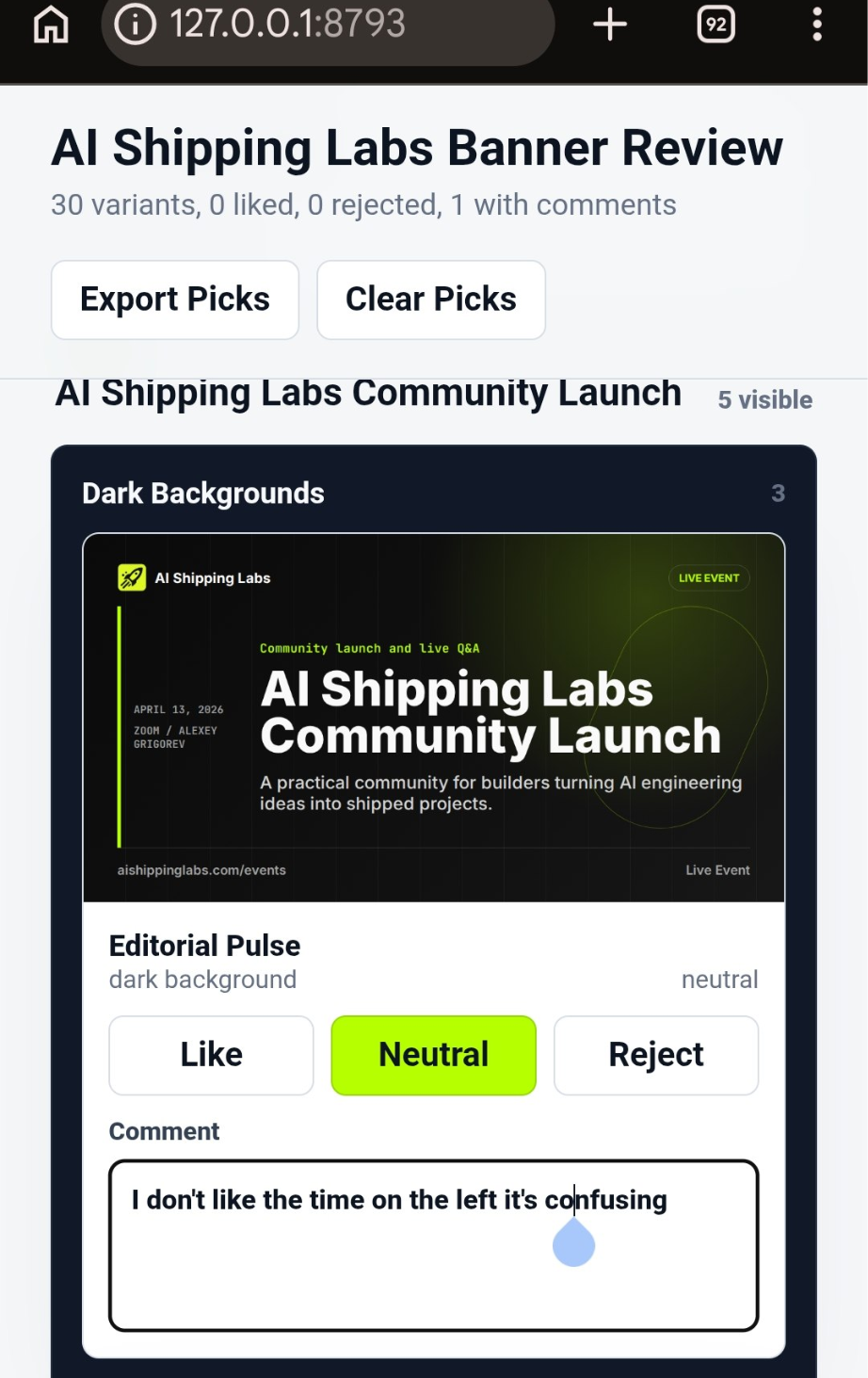
If I had to wait to review the banners on a laptop, I would have postponed it for many days. But instead, Codex built me a small throw-away app, and I finished reviewing all 30 variants in 5 minutes.
Behind the scenes: how this article was made
So far I’ve talked about communicating with agents using my phone. But a large part of my work is also writing. I rely a lot on the Telegram writing assistant for that, especially when I’m commuting.
This is how it usually works:
First, I do a brain dump with all my ideas. I record voice messages, send links, and share screenshots with the Telegram bot. Writing this article took me around 40 minutes while I was commuting to the gym.
Then I process the dump using the /process command, which creates a draft.
After that, I open the article and record my feedback into Google Recorder. For this article, I did this after my warm-up set at the gym, continued between sets, and finished when I was going home later in the evening. In total, it took another 30-40 minutes.
Then Valeriia does the initial editing pass, we review the article together, and then she finishes it.
We finish the article in 4-5 hours, which would previously have taken days of sitting down to write.
This lets me share interesting material here and keep trying new things constantly.
And I want to thank Valeriia for handling all that – it would never be possible to create all the articles here in my Substack without her involvement.
What I’ve Been Working On Recently
1) Building AI Shipping Labs with Claude Code agents
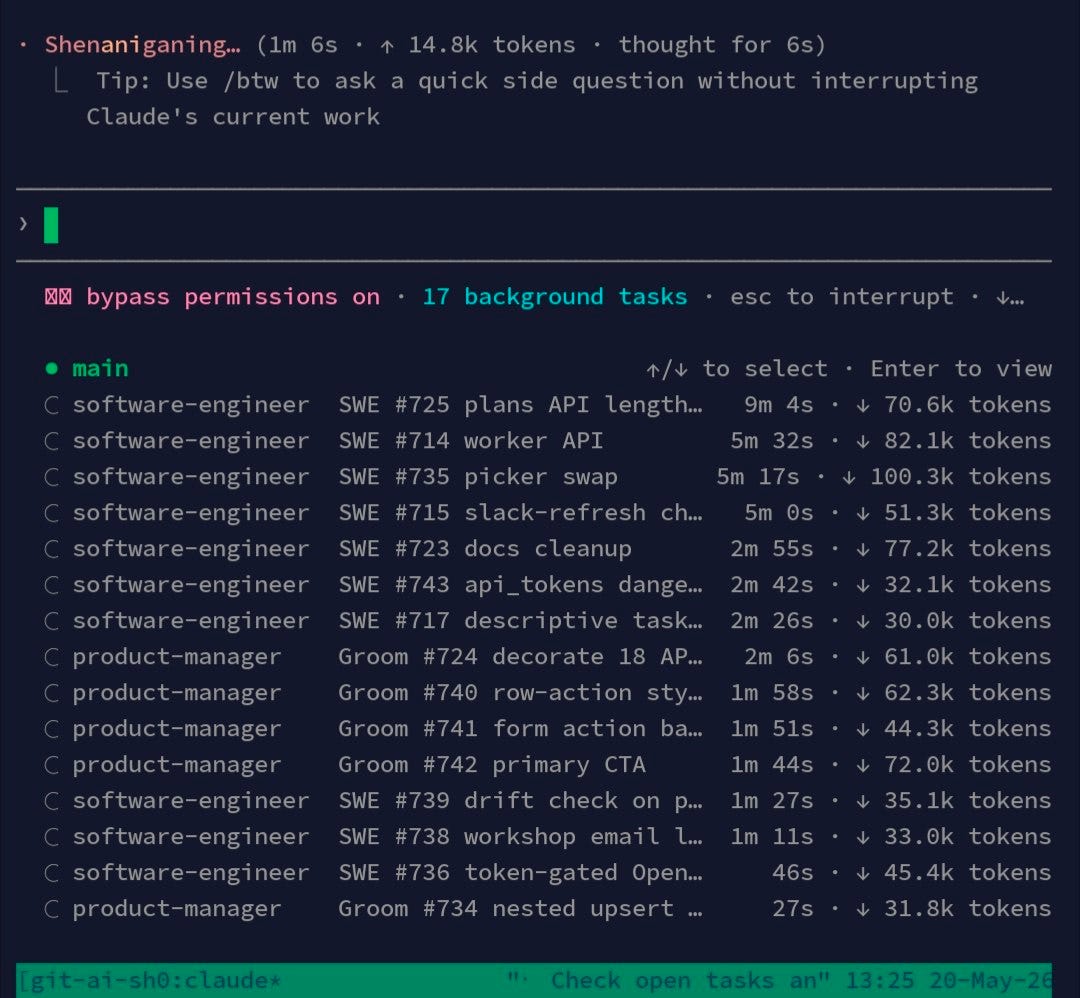
A lot landed on the AI Shipping Labs website this week — new features, bug fixes, and small additions on top of small additions. Most of it didn’t come from me typing code. The agents have been running nonstop. One thing I noticed: Codex caps me at 5 concurrent agents, while Claude Code seems to have temporarily lifted that limit.
I also worked on new personal plans for people who just joined AI Shipping Labs.
2) Vector Databases Workshop (DataTalksClub)
I ran the second workshop in the series updating LLM Zoomcamp content. This one covered vector search. We went hands-on through:
Turning text into embeddings and indexing them
Running a semantic search over the FAQ documents
Plugging vector search into a RAG pipeline
Comparing it to a keyword search, then combining both as a hybrid retrieval
Where vector search fails and how retrieval quality changes the final LLM answer
3) Solving a Real AI Engineer Take-Home Assignment Live (AI Shipping Labs)
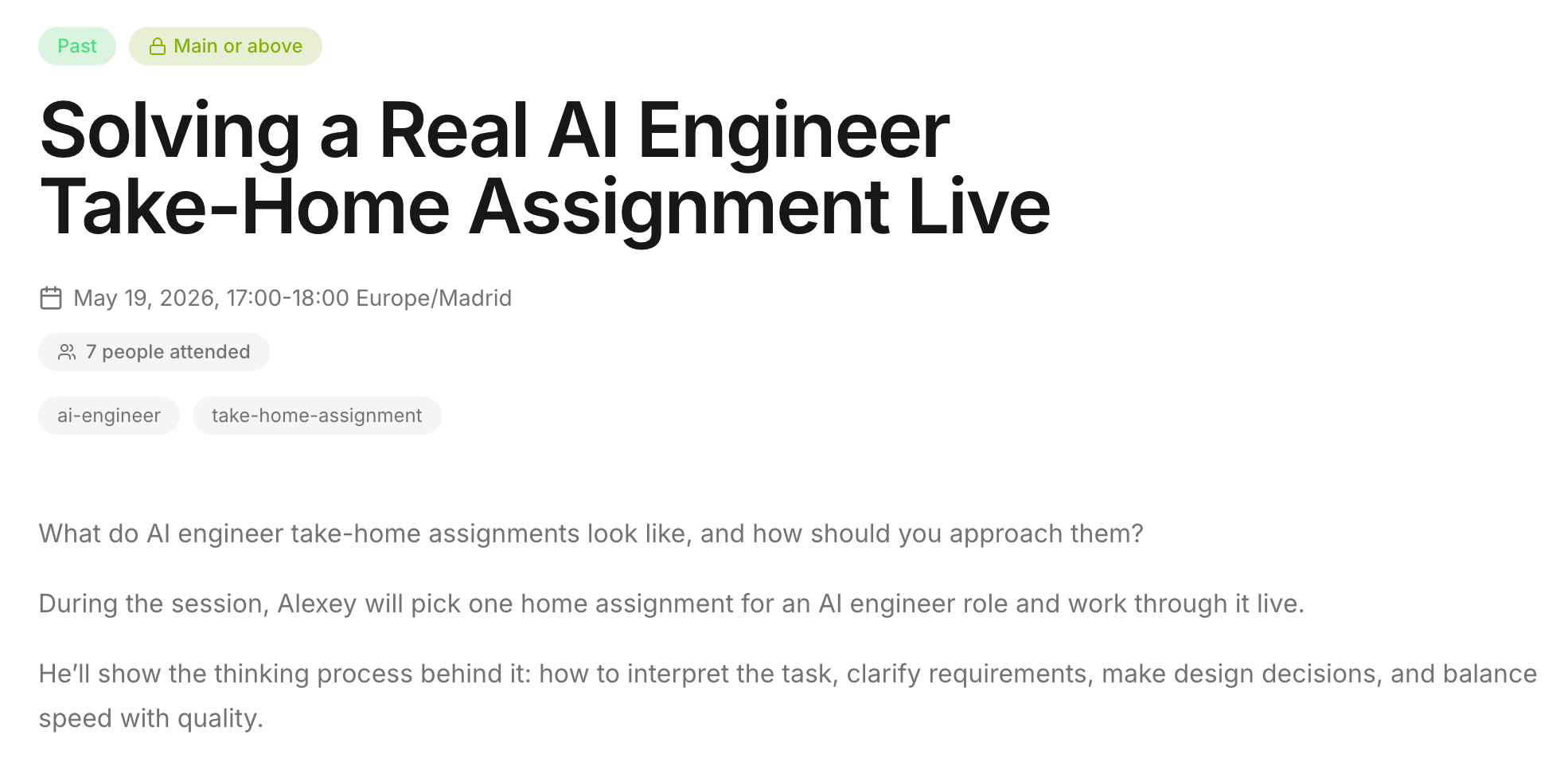
I picked one actual AI engineer take-home assignment and worked through it live: interpreting the task, clarifying requirements, scoping under time pressure, and making design decisions on the fly.
If you want to get the notes from this workshop or watch it in the recording, join AI Shipping Labs. Basic plan gets you the notes and Main plan also adds the recording.
This workshop was based on my broader analysis: 2,400+ job descriptions, 100+ GitHub repos with real candidate submissions, and practitioner reports on the interview process. I collected the insights from this analysis at the AI Engineer Field Guide.
Tools
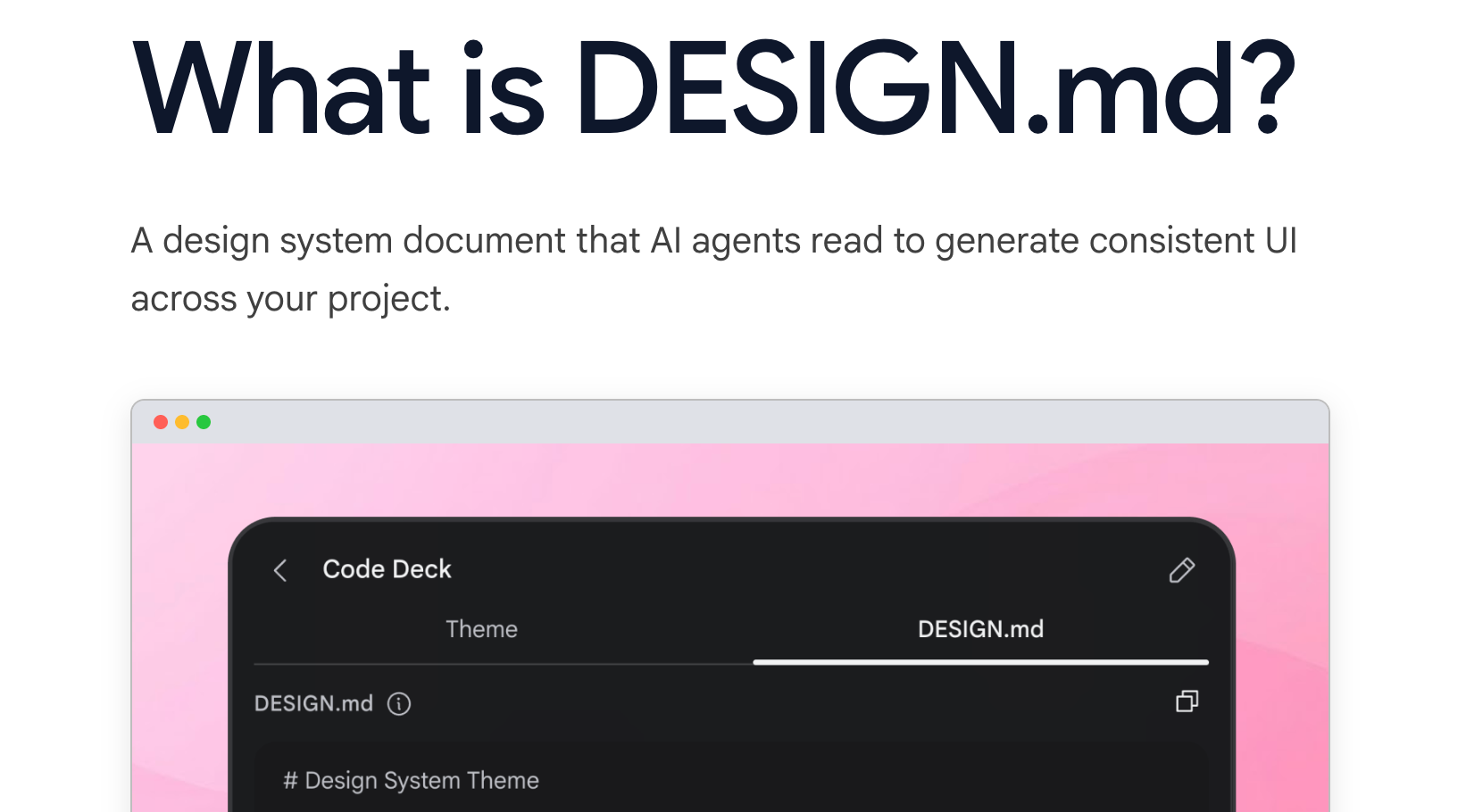
DESIGN.md is a plain-text design system spec from Google Stitch that AI coding agents read to generate consistent UI. It’s a markdown file you drop into your project root that covers color palette, typography, components, layout, depth, and dos and don’ts in a format LLMs parse natively. Think of it as the design counterpart to AGENTS.md: where AGENTS.md tells agents how to build the project, DESIGN.md tells them how it should look and feel.
SGLang is a high-performance LLM serving framework that takes share from vLLM by better supporting prefix reuse. RadixAttention uses a radix tree to automatically identify and cache shared KV blocks across requests, so when multiple users start with the same system prompt, the same RAG document, or the same few-shot examples, those tokens are computed once and reused. The cache hit rates are dramatic: 85–95% for few-shot workloads vs 15–25% for vLLM’s prefix caching. It supports continuous batching, speculative decoding, tensor and expert parallelism, and structured outputs, and is deployed at scale by xAI, LinkedIn, Cursor, and others.
Mastra is a TypeScript-first agent framework from the team behind Gatsby, bundling agents, workflows, RAG, integrations, and evals into a single cohesive package built on the Vercel AI SDK. Its standout feature is Observational Memory, a text-based memory system that reduces token costs by 4-10x while outperforming RAG on long-context benchmarks by compressing text by 3-6x and tool outputs by 5-40x. It hit 1.0 in January 2026 with over 300k weekly npm downloads, and ships a local playground for testing agents before deployment.
Edited by Valeriia Kuka