

This is the fifth article in a series based on AI Dev Tools Zoomcamp, the free course we run at DataTalks.Club.
All articles in the series:
Part 1: AI-Native Development: Specifications, Loop and Graph Engineering
Part 2: Build and Ship a Full-Stack App with AI Coding Assistants
Part 5: Coding Agent Building Blocks: Reusable Skills and Specialized Subagents (this article)
In this article, I want to cover the two most important aspects of working with coding assistants: skills and subagents.
A skill describes how to perform a repeatable task.
A subagent is an agent that runs in a separate context with clear task instructions.
In addition, I’ll cover my process for creating skills and show how to run multiple agents in parallel and turn your coding agent into a task orchestrator.
Getting these concepts is enough to work with coding agents productively, and you most likely won’t need anything else.
This article is loosely based on a live workshop I did for the course. In the workshop, I had to improvise, so the content doesn’t directly map to this article. But it’s still going to be useful, so check it out.
From Markdown Files to Skills and Subagents
In Part 1 of the course, AI-Native Development: Specifications, Loop and Graph Engineering, we touched on both skills and subagents, but I didn’t define them explicitly.
Specifically, we created a few documents:
_docs/process.mdand the other project documents contained reusable instructions (see here)_docs/team/pm.md,_docs/team/software-engineer.md, and_docs/team/qa-engineer.mddescribed specialized roles for subagents (see here).
I wanted to keep the discussion high-level and not focus on the mechanics of any specific implementation.
We didn’t explicitly define them because we can tell a coding assistant:
Implement feature #101 following _docs/process.mdIt will read the document and follow the steps there.
Or you can also specify the role of the agent at the beginning of a session:
You're a QA engineer. Your role is defined in `_docs/team/qa-engineer.md`. Review work for task #101.Even better, you can ask it to start a subagent with this role:
Start a QA engineer subagent. The role is defined in `_docs/team/qa-engineer.md`. Review work for task #101.It will work. The coding assistant can just go read the file and do the task.
But if you define these things as skills and subagents explicitly, you’ll be more effective in using them. In this article, I’ll show you how.
Let’s start with skills.
Building Block 1: Skills
A skill is a structured set of instructions for a repeatable procedure.
If you need to follow a specific sequence of actions for completing a task, you can document the steps in a skill. Then later you can ask the agent to use this skill to perform a task. It will read the file and follow the steps from there.
My Skills
I use skills a lot.
For example, one of my skills is for releasing a new version of a Python package. I maintain a lot of Python libraries that I need to regularly update and publish. I describe how I do it in My PyPI Release Pipeline for Python Libraries.
It’s a process with multiple steps:
Run the tests
Update the version in pyproject.toml
Push the code to GitHub as a tag
Verify that CI publishes the package
If I want to release a new version of minsearch, I don’t want to describe these steps each time I do it. Instead, I document this in a release skill and just say:
release a new versionThe agent understands what I need, reads the skill, and follows the steps there.
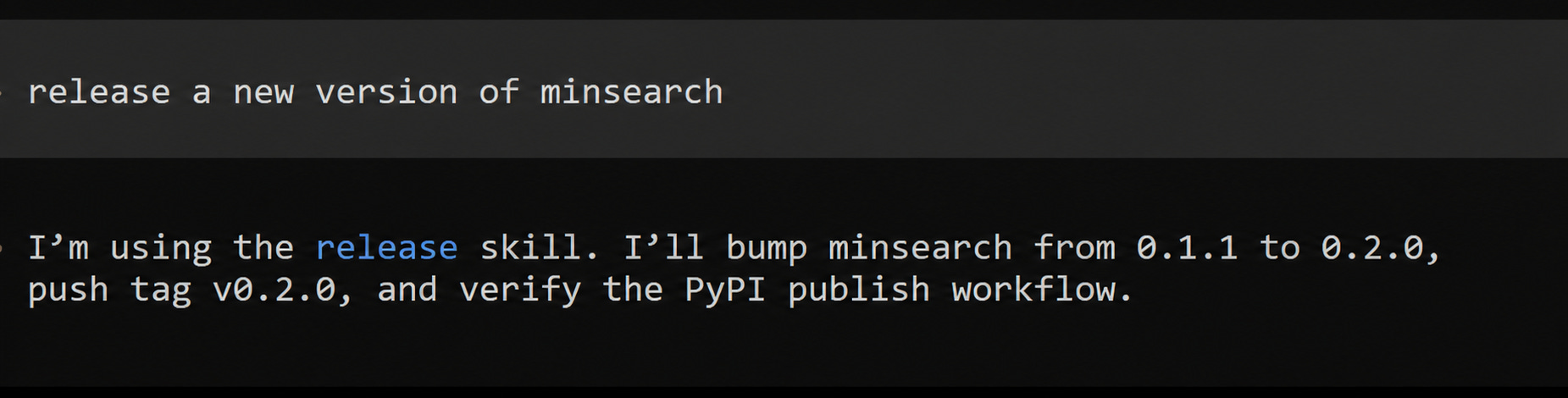
The agent recognizes the release request and loads the relevant skill without an explicit skill command
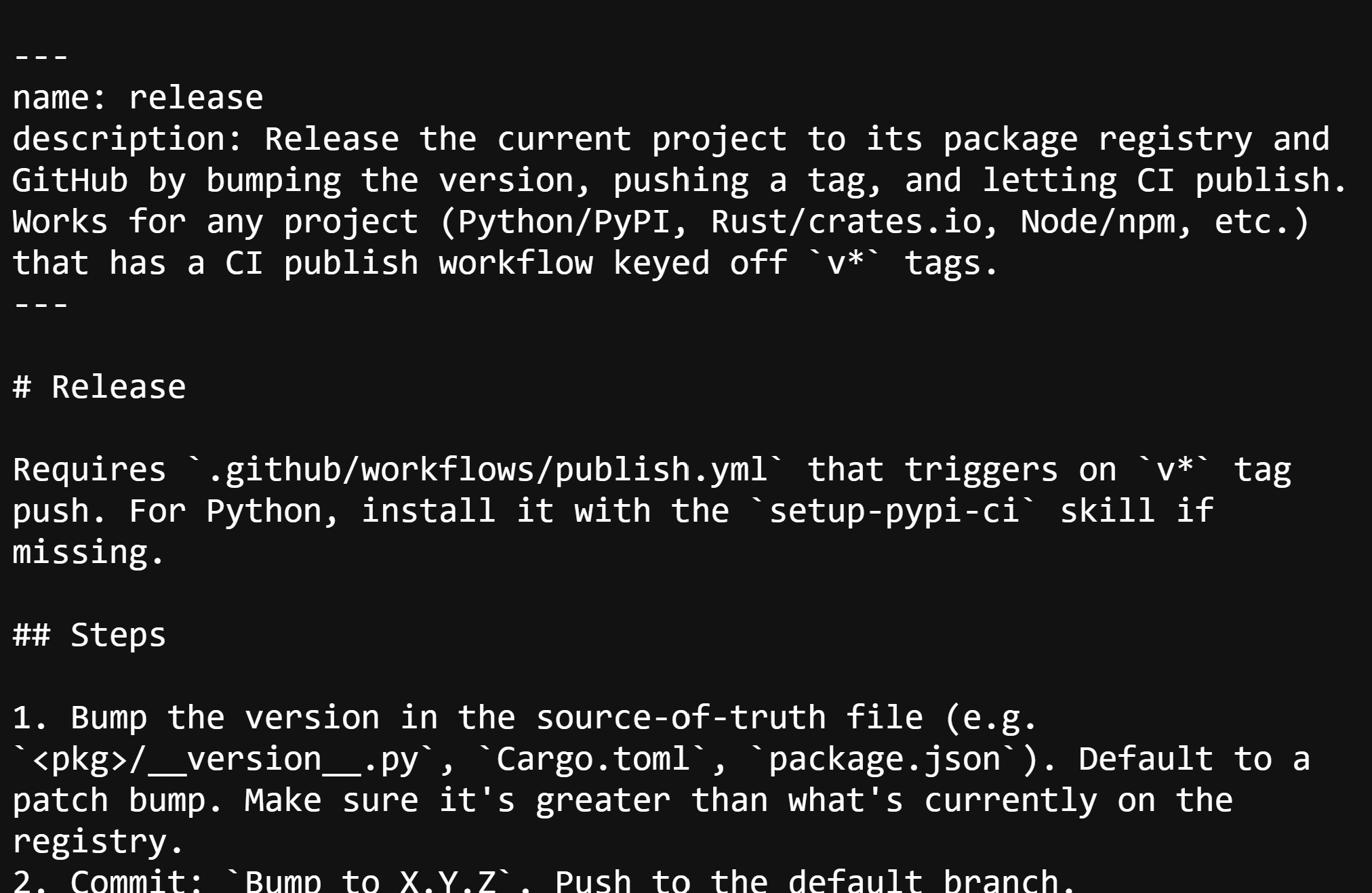
Internally, a skill is a markdown file that looks like this:
---
name: release
description: Release a new version of the current project
---

Release

1. Inspect the project and determine its package registry.
2. Run the tests and other required checks.
3. Bump the version in the source of truth.
4. Commit the change and push a version tag.
5. Verify that the CI publishing job succeeds.
The main difference between a plain markdown file that we used previously and a skill is that the skill is automatically discoverable.
I can say:
Make a release. The process is described in _docs/release.mdAnd that will absolutely work. The agent will read the file and follow the steps there.
However, with skills I don’t need to say which file to use. The coding agent loads the list of skills into its context at startup. When I need to release a library, it can see that there’s a skill for that, so it goes ahead and uses it.
The agent can discover the right skill from the request, while an explicit command remains available when you want direct control
A skill is a markdown document, but in order to make it discoverable, we need to follow a convention:
It must have a frontmatter section with a name and description
It’s saved in
.agents/skills/<NAME>/SKILL.md
And that’s it - the rest is up to you. You can also add other markdown documents or scripts together with the SKILL.md file in the same directory and describe how the agent should use them.
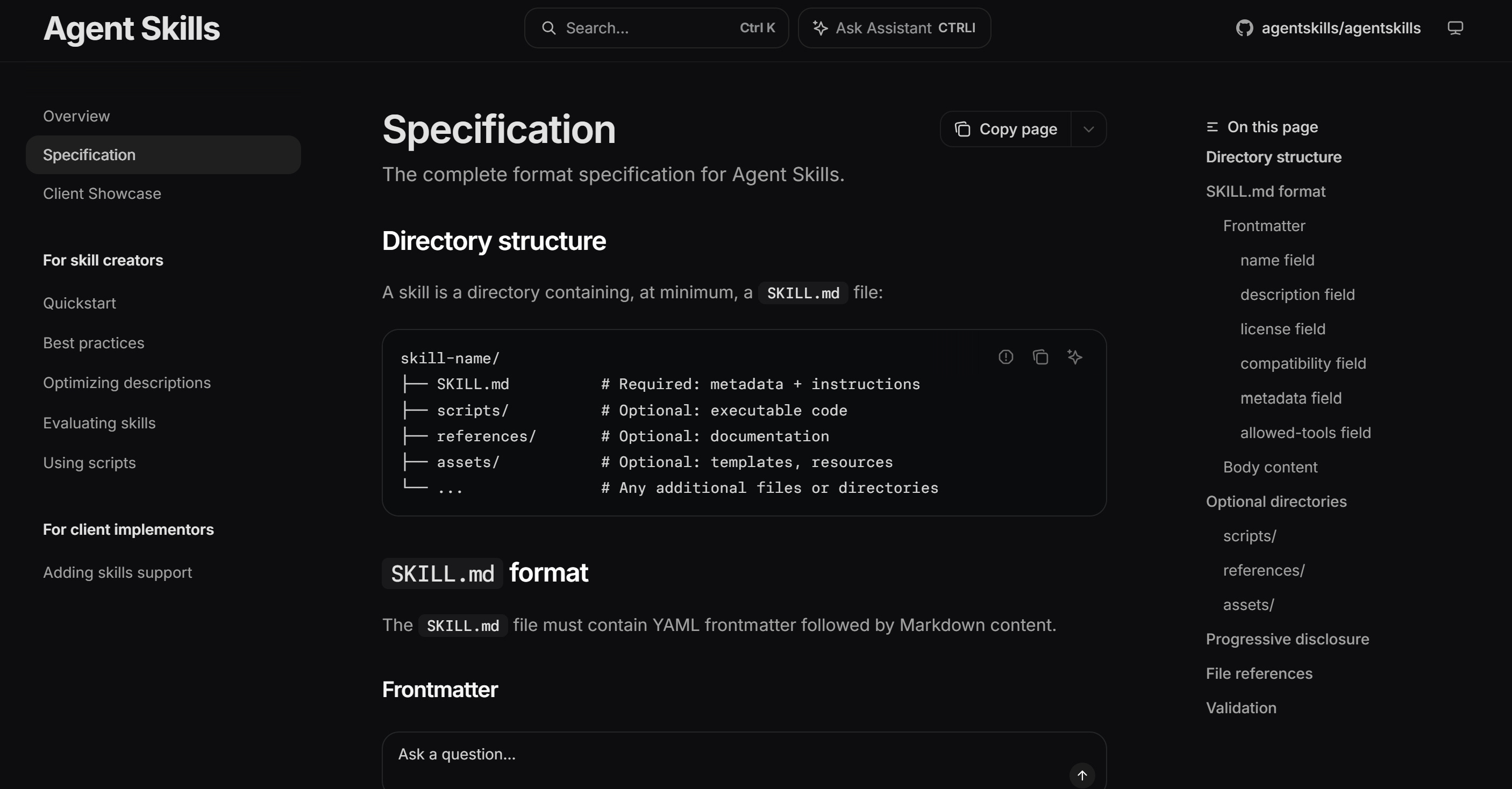
The Agent Skills specification describes this structure and the format in more detail.
If you want to better understand how skills work, the best way is to build a small coding agent with skills. In the AI Shipping Labs workshop Build a Coding Agent with Tools, Skills and PydanticAI I show you how. We first learn about agents and function calls, and then see how to implement a special function for loading skills.
Global Skills
There are some skills that all your projects need. But some are only needed for local work.
Examples of global skills:
I use release for releasing a new version of a library, init-library to scaffold a new library or create-github-repo to create a GitHub repository
I also fetch-youtube, fetch-loom, and fetch-zoom, to fetch recordings or transcripts for the agent to analyze.
For creating diagrams, I have a diagram-creator skill.
I use these skills across multiple projects, so it’s better to make them global, so any agent on my computer can see and use them.
To create global skills, you need to put them in
~/.codex/skillsfor Codex~/.claude/skillsfor Claudeother coding assistants have a similar structure
I use multiple assistants, so I want all of them to use the same skills. For that, I maintain one canonical copy of the skills in my .agents repository, and then create symlinks from there to ~/.codex/skills, ~/.claude/skills and other places.
Project-Specific Skills
Most skills are not useful globally though - they are project-specific.
For example, in my projects:
Course Management Platform has an incident-response skill. Every time there’s an alert, it knows how to investigate and fix the problem, similar to what we covered in Article 4.
DataTalks.Club FAQ has skills for fetching course questions from Slack and turning recurring questions into FAQ entries.
They work in the same way as global skills, but you place them in your project root:
./.agents/skills/for all the assistants except Claude./.claude/skills/for Claude Code
It’s annoying that Claude has its own format - just like with CLAUDE.md.
I solve this problem by creating a symlink from .claude/skills/ to .agents/skills/.
I hope Anthropic starts listening to its users and adopts the .agents convention too, so I can finally delete all these symlinks.
Creating Skills
You don’t need to create these skills manually. Coding assistants know the format, so you can ask them to create these skills.
However, I don’t just start a session and say “create a skill for releasing a new version of this library”. Usually, I do the task with the agent first and see where I need to correct it.
We work together until the task is done, and then at the end I say:
Save this as a skill. Cover the workflow we followed and keep all the corrections I made in mind, so the next agent can do the task correctly from the start.

This skill is specific to this project, so don't create a global skill.
If I don’t include the last line, Codex will create a global skill, so I always have to add it. I didn’t observe this behavior from other agents.
Improving an existing skill works in the same way. I trigger a skill, and if I see that something requires my intervention, I correct the agent. At the end of the session, I ask to update the process in the skill, so I don’t have to do it next time.
Building Block 2: Subagents
Most coding assistants allow you to start one session within another. We call the agents created this way “subagents”.

Subagents let one coding agent prompt another agent inside its own session
Session Context
The context for a session is all the information the agent has about the current task and all the actions it has taken.
It includes:
AGENTS.md file
Skills and tools definitions
All the files it read
All the code it read and wrote
All the text you sent it and all the text it output
That’s a lot of information. As the session gets longer, the agent starts “forgetting” things from the beginning. This is called “context rot”.
That’s why I start a new focused session for each task. In the article From Idea to Production in 28 Prompts, I show the steps you need to take your idea to production and recommend starting a new session for each step.
Also, the current context will influence the future actions of the agent. If the agent implemented a feature, you shouldn’t ask the agent to test it in the same window. The implementation history will bias the agent, and it can skip some checks. Instead, it’s better to start a fresh session and ask the agent there to check the work.
Agentic Team
This is what we did in Part 1 of the course, AI-Native Development: Specifications, Loop and Graph Engineering. We defined multiple roles for our agentic team:
Product manager (PM) - turns raw intake into specifications
Software engineer (SWE) - implements the task based on the specifications
QA engineer (QA) - validates that the task is implemented correctly
Each of these agents lives in a separate session. The context from SWE never gets into the QA session, so the QA engineer can test the system independently.
If I have an issue #101 that’s already groomed and I want to implement it, I can start a new session and say:
You're a software engineer agent. Your role is described in `_docs/team/swe.md`. Work on issue #101.But instead, I can also launch it as a subagent:
Launch a subagent to implement #101. Follow the process.
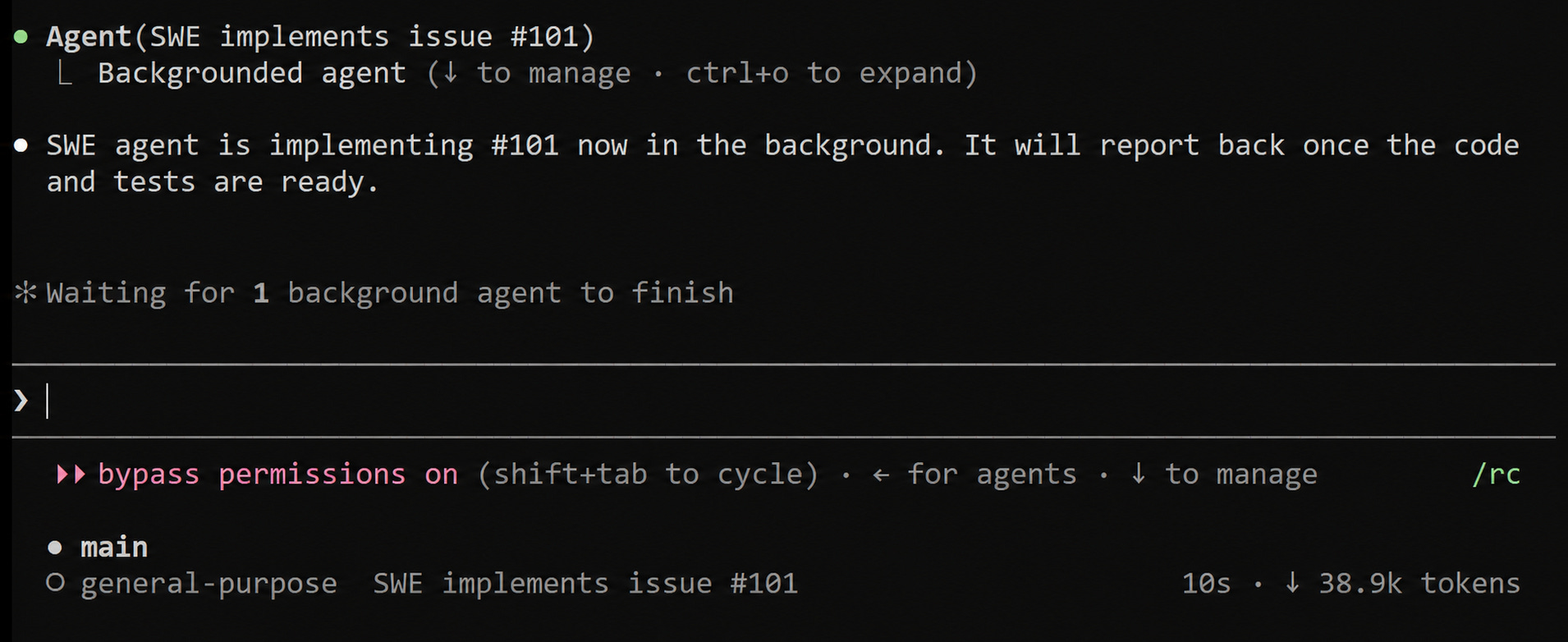
The main session can keep working while a subagent handles a focused task in the background
It will create a new agent with an empty context (plus AGENTS.md) and automatically prompt it with something like this:
You're a software engineer. Your role is defined in `_docs/team/swe.md`.
Your task is to work on issue #101. Follow the process in `_docs/process.md`.
In some coding assistants, you’ll also be able to look inside the subagent sessions. In others, you’ll only know that the subagent is doing something, but you won’t know what exactly.
Defining Subagents
The coding assistant can read the agent definition from a markdown document (like _docs/team/swe.md) and launch a subagent.
Just like with skills, you can also create a reusable and discoverable subagent definition.
For example, for the software engineer, the definition could be:
---
name: software-engineer
description: Use this agent to execute a well-scoped coding assignment.
---

Implement the assigned task, add or update tests, run the project checks, and
report the files changed and any remaining risks. Do not expand the scope.
Or even this:
---
name: software-engineer
description: Use this agent to execute a well-scoped coding assignment.
---

Read your role definition from _docs/team/swe.md
You put these definitions in:
.agents/agents/<NAME>.mdfor the majority of assistants.claude/agents/<NAME>.mdfor Claude
You can also define subagents globally, but I never needed it. My subagents are always project-specific.
Now you can ask:
Launch software engineer for #101And it will start the software engineer agent.
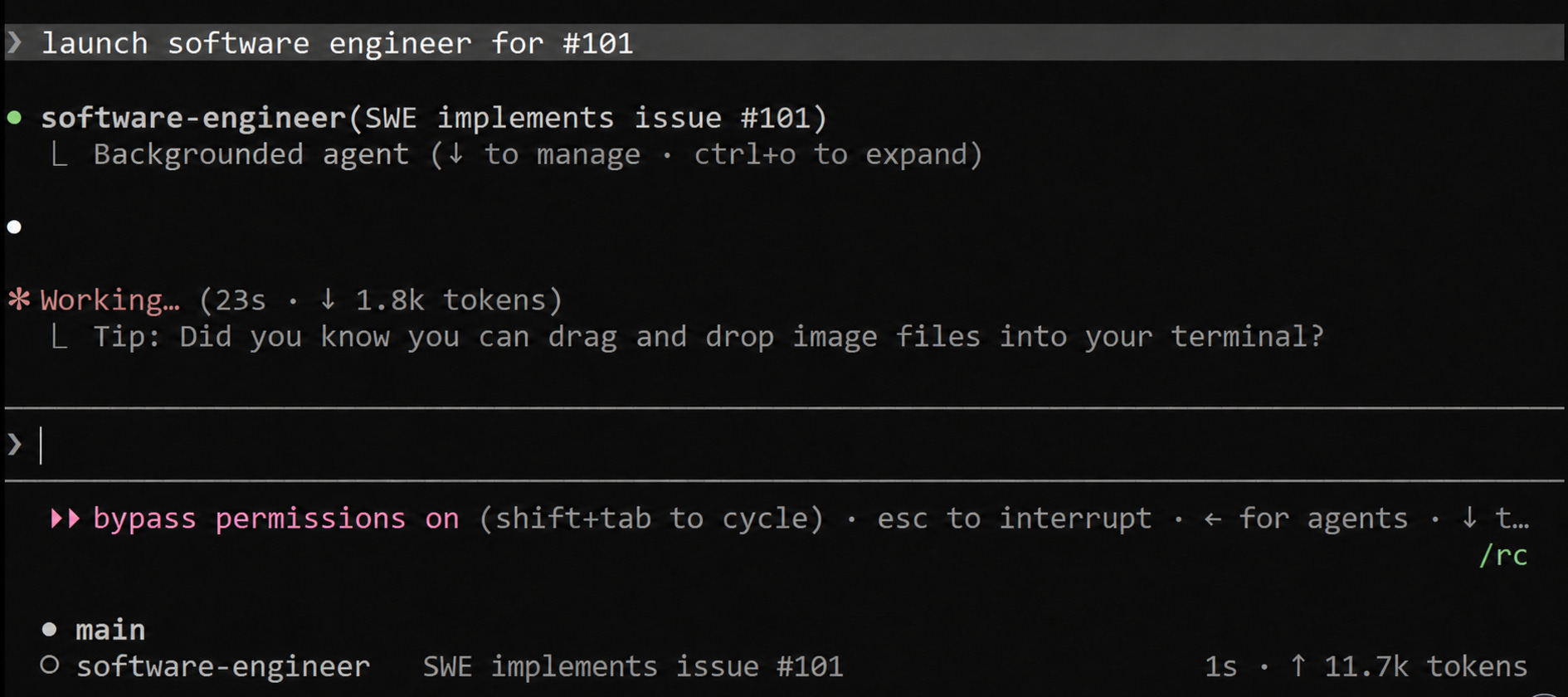
A subagent can take on a specialized role, such as software engineering
Note that for some coding agents like Claude, you’ll have to restart the session to discover the agent you just defined.
Orchestration Session
When you start using subagents, your main session becomes the orchestrator.
If we have a process specified in process.md:
PM grooms the issue.
SWE implements it.
QA checks it.
If the issue passes the check, QA outputs
PASS; otherwise, it outputsFAIL.If it outputs
FAIL, SWE needs to reimplement it until QA accepts it.
This way, we create a graph.

The workflow from Part 1 is a graph: PM hands the issue to engineering, QA closes passing work, and failures loop back for reimplementation
This sequence needs to be enforced by something. Typically, we use the main coding session for that.
If we describe the process in our process.md document and link it in AGENTS.md, then we can ask:
Implement #101It will automatically run #101 through the PM -> SWE -> QA sequence, each step will run in its own fresh context, and the orchestrator will make sure that on FAIL the task goes to SWE who will fix the problems.
Parallel Execution
In the first article, I only showed how to run this flow sequentially, and we can’t run it any other way: we always have to follow the PM -> SWE -> QA sequence.
But we can take care of multiple independent issues in parallel.
Our main agent is already the orchestrator, so it can run multiple subagents in parallel. But we need to make sure that the agents aren’t stepping on each other’s toes.
For that, we use git worktrees:
For each new task, create a new git worktree
The agents work independently in these worktrees
You go through the entire PM -> SWE -> QA cycle in that worktree
When the cycle is over and the task is done, the orchestrator merges it back into main (alternatively, you can have a conflict resolver agent)
The worktree is deleted
The orchestrator’s role here becomes more than just launching subagents in order.
It also needs to:
Keep track of the status of each task
Schedule the agents
Create and merge worktrees
Prevent logical conflicts by picking tasks that don’t need to work on the same files
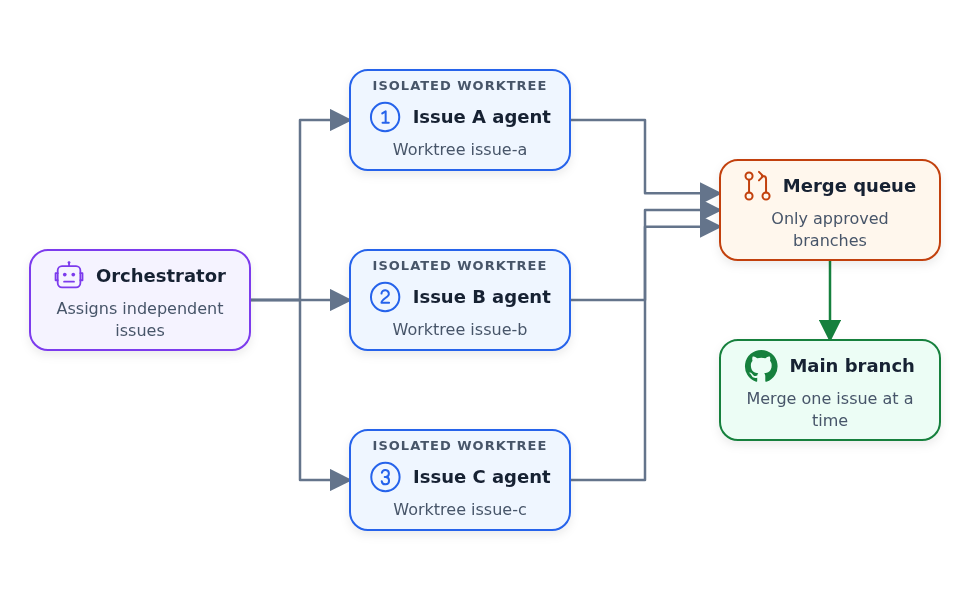
Agents work concurrently in isolated worktrees while the orchestrator controls review and merge order
To set it up, I put something like this in the process.md file:
Work in isolated git worktrees and run up to five agents in parallel.

You are the orchestrator. Your job is to:

- Split the backlog into independent issue tracks.
- Give each agent a separate worktree and clear file ownership.
- Keep the agent slots full while eligible work remains.
- Send completed work to a fresh reviewer.
- Return review findings to the correct implementer.
- Merge approved work into the main branch one issue at a time.
- Coordinate the work. Never implement the issues yourself.
This is the approach I use for the majority of my projects.
Summary
Use a skill when you repeat the same sequence of actions.
Use a subagent when a task needs a separate context or a specialized role.
Use the main session as an orchestrator when several agents need to follow a process.
Use git worktrees when independent tasks need to run in parallel.
If you want to learn more about using AI for development see the AI Dev Tools Zoomcamp course.